
Use an opaque product photograph for this exercise. The result is an editable cutout that can sit over a new background, with a headline behind the product and a separate fade you can revise later. Keep the layered document; an exported image cannot preserve those controls.
Select the mask before you paint
- Put the product photograph above a new background layer.
- Make a selection around the product, select its layer, and click Add Layer Mask. Inspect which side is visible before refining it.
- Click the mask thumbnail, not the photograph thumbnail. Paint black to conceal unwanted areas and white to restore them.
Unmesh Dinda introduces that visibility model in PiXimperfect's layer-mask lesson. Black and white change where the layer shows; they do not recolor its packaging. Gray gives partial visibility.
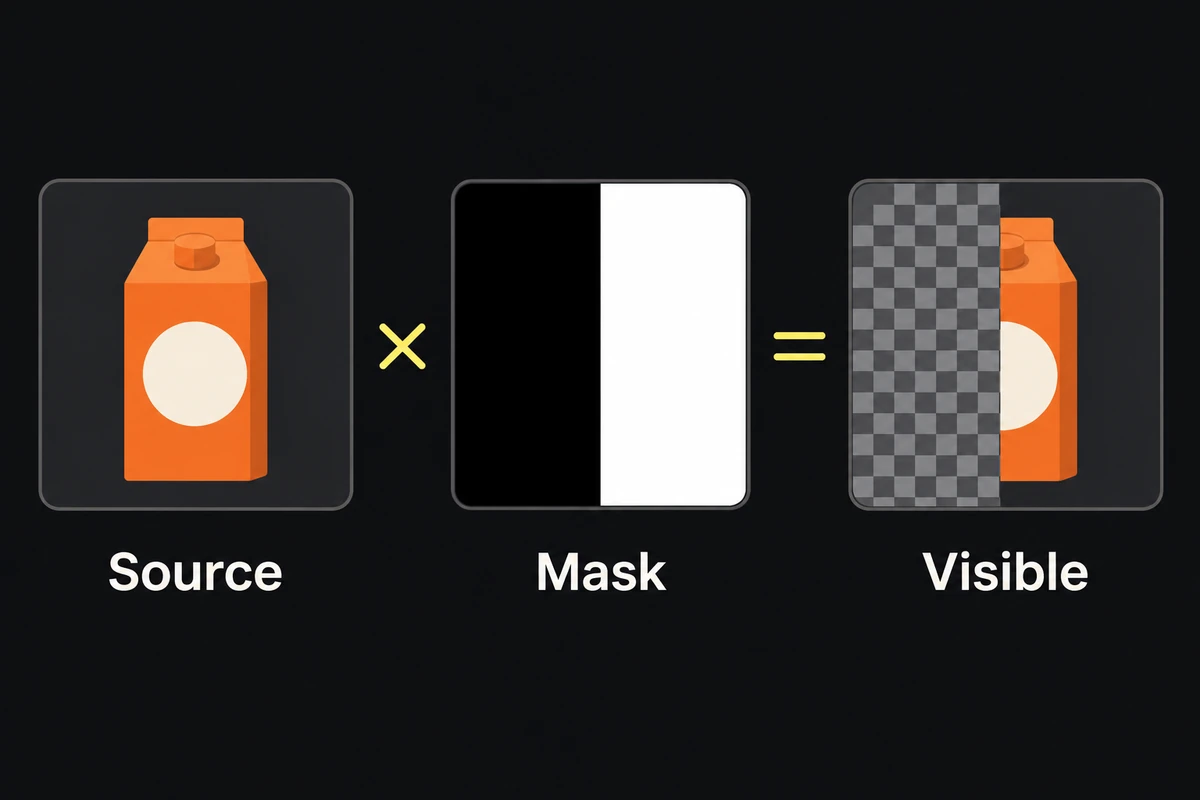
Our illustrated example: black conceals the source's left half; white preserves its original right half. The checkerboard represents hidden areas, not artwork to export.
For a headline behind the cutout, use this layer order:
Product photograph + cutout mask
Editable headline
New background
The masked product occludes the headline automatically. Change the text to check that the overlap follows the product without repainting letter-shaped holes. If a brush stroke changes the photo's color, undo it and select the mask thumbnail.
Match the boundary to the thing you are hiding
An opaque carton edge should remain opaque. Follow its photographed sharpness: use a defined boundary for a sharp corner and a gradual transition where the source itself softens. Broad feathering across the carton can make the background show through its face.
Inspect against both light and dark temporary backgrounds. If one corner needs repair, change that part of the mask. Use the adjustable Feather control only when the whole boundary needs softening.
A pale fringe may contain old background color inside partially visible pixels. Tightening the mask and correcting that color are different operations; see the cutout preparation guide.
Repair a small area without rebuilding the cutout
Paint on the existing mask to hide or restore a local region. If you paint away useful detail, switch to white and bring it back; this works only while the underlying source pixels remain.
Keep the layer and mask linked when moving the carton. Unlink them only when intentionally moving an image inside a fixed opening, as Dinda demonstrates. Moving the photograph inside a stationary product-shaped mask can cut into one side and expose background on the other.
Give separate revisions separate controls
For a variant that fades the lower carton, put the masked product layer in a group and add a second mask to that group. Select the group mask and apply a linear gradient: white at the product's top, black at its bottom. Leave the cutout mask alone.
Shift-click the group mask thumbnail to disable it and confirm that the original cutout is intact; Shift-click again to restore the fade. White on the group mask cannot reveal pixels still hidden by the layer mask. PiXimperfect's double-masking example shows the nested relationship.
Blend a shadow or light without confusing it with a cutout
A blend mode changes how visible pixels combine; it does not create exported transparency. In Dinda's shadow example, Curves brings unwanted paper toward white and Multiply lets the shadow darken the new background. Gray paper can still darken a rectangular area.
Keep that shadow treatment separate from the product cutout. Do not assume that white disappearing under Multiply means the file has an alpha channel.
Keep the editable source and check what the export contains
Save the layered PSD. Then export for the actual job: a finished ad includes its campaign background; a reusable cutout needs an alpha-preserving format and export setting. Open the delivered cutout on a different background to check real transparency and edge residue.
For glass or translucent material, the photographed old background may remain visible inside the object. A mask alone cannot reconstruct a different scene through it; Dinda's translucent-edge lesson illustrates that limit.
The exercise passes when you can change the headline, move the product, disable the fade and recover the intact outline. For product replacements as well as visibility edits, continue with the editable ad template.