
A transparent file can still look pasted on. Pale edge pixels may show against a dark campaign color; a flattened shadow may look like a gray stain; a tight crop may cut off a product detail. Judge the cutout on the backgrounds where it will be used, not only on the editor's checkerboard.
Decide what the cutout must retain
Start from the original photograph and keep a mask so removed areas remain recoverable. Identify the edges that need different treatment: a hard package corner, loose hair, fabric mesh, a handle opening, or a soft shadow. Preserve the complete subject and enough canvas for its intended placement.
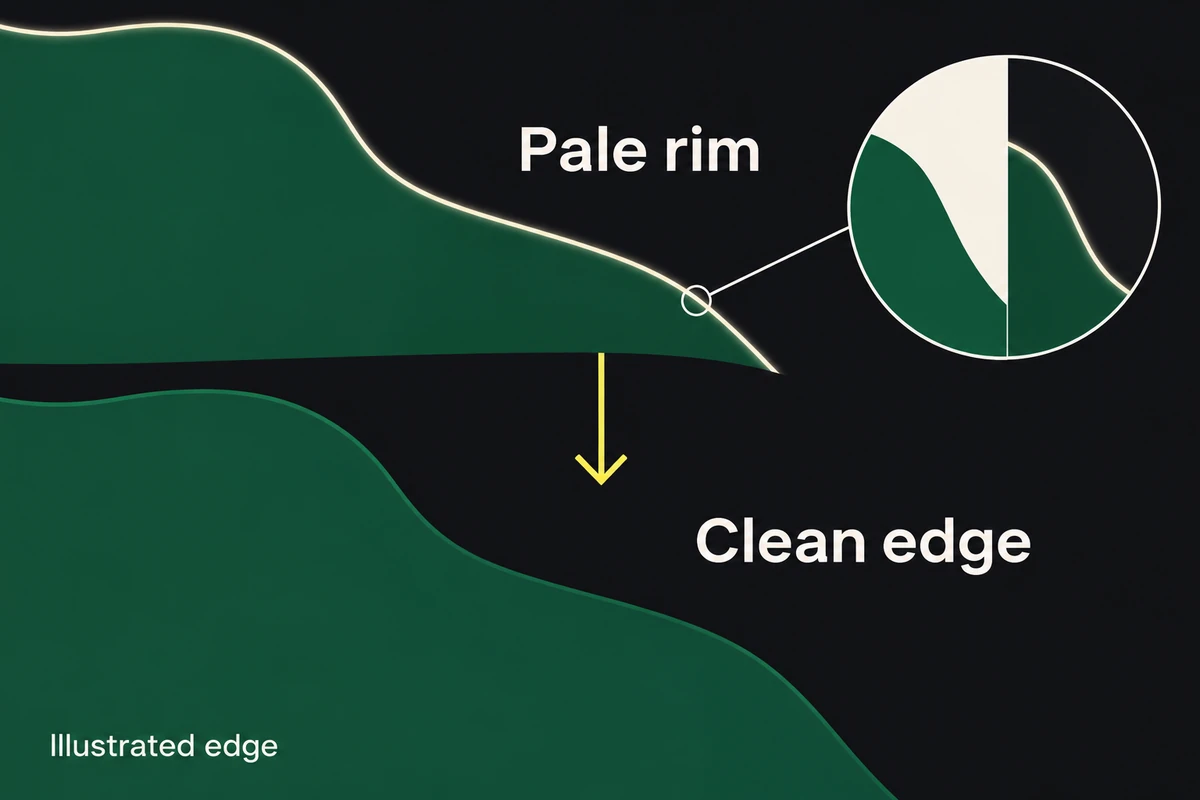
Automatic removal is a first pass. Zoom in to find missing details and leftover background, then zoom back to delivery size to judge the result. A shoe photographed against white may retain pale pixels along its sole; those become a visible rim on a charcoal banner. Softening the entire edge can spread that rim rather than remove its color.
Test several backgrounds
Place light, dark, and actual campaign backgrounds beneath the cutout. Inspect the outer contour and internal openings, then match the repair to the defect:
- Old backdrop remains outside the subject: Refine the mask in that area. Avoid shrinking the whole mask to repair one corner.
- A real detail is missing: Restore it from the original through the mask. A harder contour cannot replace erased hair or a handle edge.
- The shape is right but the rim is pale or colored: For background-color contamination along a slightly soft edge in Photoshop, select the layer-mask thumbnail, open Select → Select and Mask → Output Settings, enable Decontaminate Colors, and adjust Amount while watching the rim. Set Output To → New Layer with Layer Mask, then click OK. This changes edge pixels, so retain the original layer. Compare the result on light, dark, and campaign backgrounds, and check the product's colors against the original. If genuine colored trim or reflections change, hide the corrected output, restore the preserved original, and repeat with a lower Amount or without Decontaminate Colors. For leftover backdrop along a hard package edge, repair the mask instead of softening or recoloring the whole contour. Adobe explains fringe contamination and demonstrates this Select and Mask output path.
- Glass or mesh becomes opaque: Revisit the source and mask. A simple solid silhouette may be insufficient for material that should transmit the new background.
- The subject disappears into the campaign color: Change its backing or placement. More transparency will not create separation.
Judge the repaired cutout at the intended display size. A defect visible only at extreme zoom may be less damaging than an over-sharpened edge that looks unnatural in the ad.
Keep shadows believable
The original studio shadow may carry the old floor color or point against the new scene's light. Keep it when it fits; otherwise separate it from the subject and rebuild or omit it for the new placement. Keeping a shadow on its own layer lets the next designer change the background without repainting the product.
Inspect the contact point first. A floating gap under a shoe and an opaque gray patch around it are different defects. Adjust position and contact shadow for the gap; remove leftover floor pixels for the patch. Then check the broader shadow's direction and softness against the scene.
Export and reopen the asset
Export to an accepted alpha-capable format, such as PNG when the destination supports it. Reimport that file into a fresh composition over the same light, dark, and campaign backgrounds. This catches a flattened background, an exported checkerboard, or edge damage introduced after the editable mask was approved.
Hand off the original photograph, editable mask, and finished transparent export with the tested background noted. If the file needs optimization, compare the optimized copy's edges using the compression guide. If the edge is clean but the product still blends in, revisit the palette's background role.