
Build a layered ad with a product photograph, a headline, a CTA and a background. You should be able to replace the product and copy without repainting the composition. The exercise uses a controller image; an exported ad is a visual reference, not an editable template.
Preserve the image before resizing it
Place the original product image as a Smart Object, or convert its existing layer with Convert to Smart Object before repeated resizing. Unmesh Dinda's PiXimperfect resizing demonstration compares this with reducing and enlarging a raster layer.
The object retains the source present at conversion. It cannot restore detail already discarded or make a small blurred source suitable for a larger placement. Recover the original first if the raster layer has already been reduced.
Give product, copy, and background separate jobs
Keep the main document's useful controls visible:
Headline and CTA — live text layers
Product — Smart Object with its own mask/corrections
Shadow — separate adjustable layer, when needed
Background — editable fill or artwork
Clip a product correction to the product rather than letting it alter the headline or background. Put related product components inside its Smart Object when they need to move together. Dinda's nested-layer demonstration shows how saving the contents updates the parent.
Do not put the whole ad into one object merely to shorten the Layers panel. Photographed lettering remains pixels; changing the headline beside it is a different operation from retouching a printed product label.
Replace content, then inspect the composition
- Double-click the product object's thumbnail to open its contents.
- Place the new product inside, keep the inner canvas size, and position the replacement. Hide the previous product.
- Save the inner document, then return to the ad. Dinda demonstrates this open–edit–save sequence.
- Check the full composition: replacement clipping, copy overlap, product scale, mask and shadow. Repair any treatment tied to the old silhouette.
A keyboard and a compact controller will not occupy the same canvas in the same way. Keeping a transformation does not guarantee a good replacement. Perspective applied to a flat photograph also cannot reveal another side of the physical product. See mask revisions and product compositing for those repairs.
Keep effects open to revision
Apply supported filters to the Smart Object and confirm that they appear as Smart Filters. Reopen the filter entry to change its settings, or toggle it off to compare; PiXimperfect's Smart Filter example demonstrates that route.
When a replacement looks too soft, disable the blur before sharpening anything. A clear label with the filter off points to the treatment; a soft label in both views points back to the source or scale. An operation that asks to rasterize may remove the editability you are trying to retain.
Choose which copies should change together
In the same PSD, an ordinary duplicate of an embedded Smart Object shares its contents. Editing that source changes both appearances, as Dinda shows in the duplicate comparison.
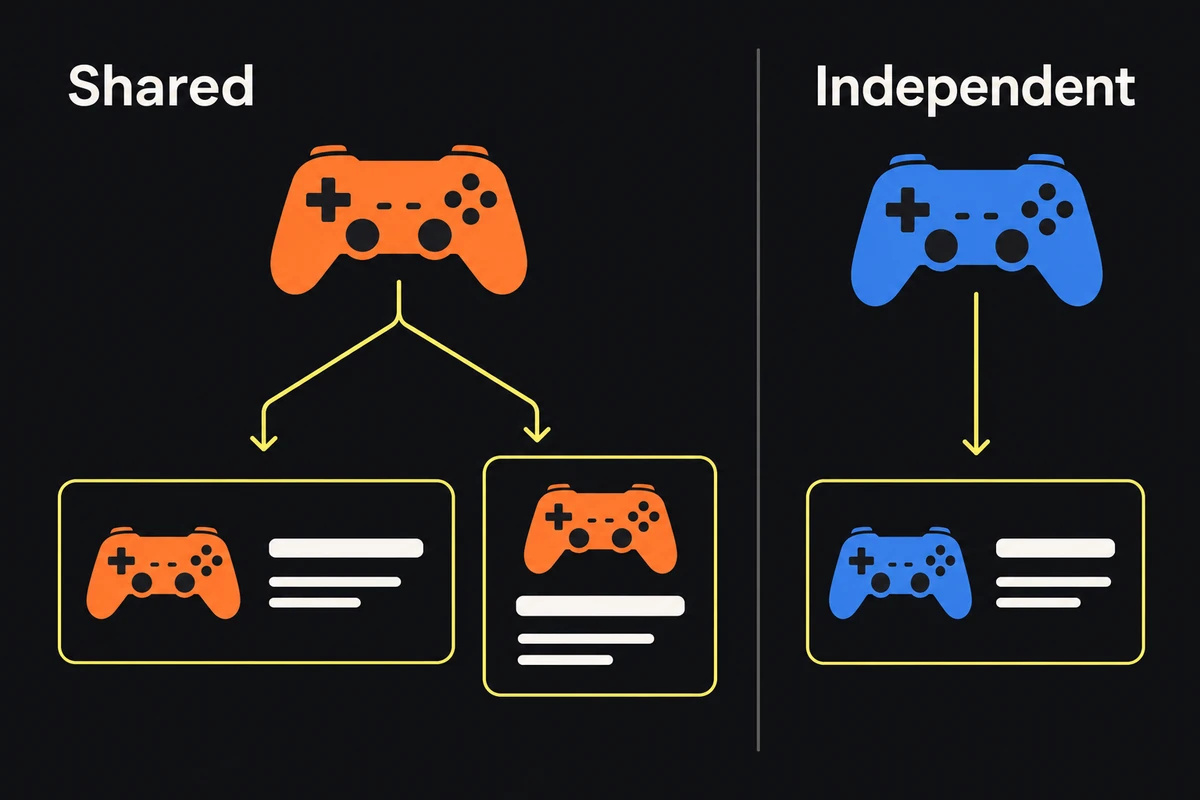
The orange source feeds two layouts. The blue source has independent contents. Copy and background stay separate in each layout.
For an independent treatment, use New Smart Object via Copy instead; the demonstration begins around 36:42. Make a temporary obvious change inside one object's contents, save and check exactly which appearances update. Undo that test change before continuing.
For several PSDs that should follow one external master, use a linked Smart Object. Dinda's linked-logo example shows the shared update. Retain that source file with the handoff; an embedded object travels inside its PSD, while a linked object depends on another file.
Deliver the editable file and check the exports
Save the layered PSD with its required linked sources and identify any fonts the next editor needs. Reopen a copy of that package from its delivery location to catch missing dependencies.
Test one replacement product and a longer approved headline before calling it reusable. Correct the layout for each requested shape rather than stretching the composition. Export and open the actual files to verify the product, copy and crops.
Finish with an editable source that survives those changes and a delivery set matching the requested variants. The handoff checklist covers packaging; it cannot substitute for testing the template itself.