
Before boosting saturation, reopen the exported file in the editor that made it. Compare it with the source on the same screen. If they match there but differ in another viewer, investigate that viewing path before changing the artwork. If they already differ in the editor, inspect the export’s color profile and conversion settings.
A profile changes what the numbers mean
RGB values need a color space to identify a color. The same channel values in sRGB and Display P3 need not describe the same visible color; P3 also covers colors outside sRGB. The W3C color specification explains these spaces and their different gamuts.
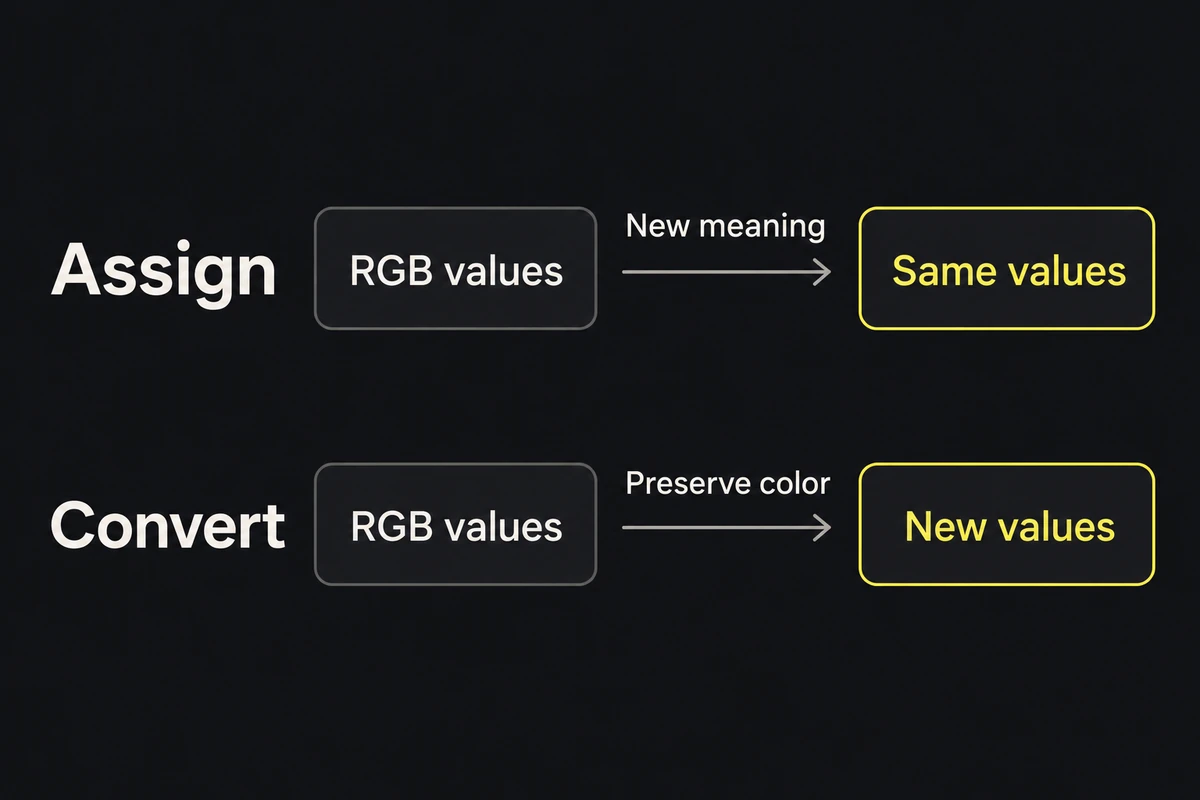
Keep two operations separate. Assigning a profile changes how existing values are interpreted. Converting to a profile translates colors into the destination space. Adobe’s profile instructions distinguish them. Assigning sRGB to a P3 file does not convert its pixels to sRGB.
Check the color you need to preserve
Consider a constructed campaign example with a bright coral accent. Suppose the coral was chosen in P3 and falls outside sRGB. An sRGB delivery copy cannot reproduce that exact color; conversion must bring it into the destination gamut. Raising saturation afterward cannot recover a color the destination cannot represent.
For ordinary web delivery, Adobe recommends converting to sRGB. In Photoshop, use Edit → Convert to Profile, select sRGB IEC61966-2.1, and preview the effect on the important colors. Keep the editable master and save a separate delivery copy with its profile when the export format supports it.
Wide-gamut delivery is a valid exception when the receiving workflow supports it and you have checked the result. A correctly managed P3 image on a capable display can preserve colors that sRGB cannot. There is no reason to shrink every master to sRGB.
Check the delivered image
Use this sequence to locate the change:
- Inspect the source and exported file's profiles. If a profile is missing, establish the intended space from the source or its creator before assigning one. Guessing sRGB may change the interpretation again.
- Reopen the export in the source editor on the same screen. If it differs there, compare conversion and export settings; do not compensate by recoloring the master first.
- Open the same export in the destination viewer. If the editor matches but this view differs, investigate that viewing path and its color handling.
- Upload it to the intended channel and inspect the served image. If the local file matches but the served copy changes, the difference lies later in delivery; adjusting the source may only conceal it in that one path.
- Check another device for a usable result. Displays can differ in brightness and gamut, so identical appearance on every screen is not a practical acceptance test.
For edge artifacts or banding, use the compression guide. If the colors survive but the character disappears into the background, revisit the palette’s color roles.
Approve the delivery when its key colors retain their intended relationships in the actual placement, and any gamut compromise is acceptable before publication.