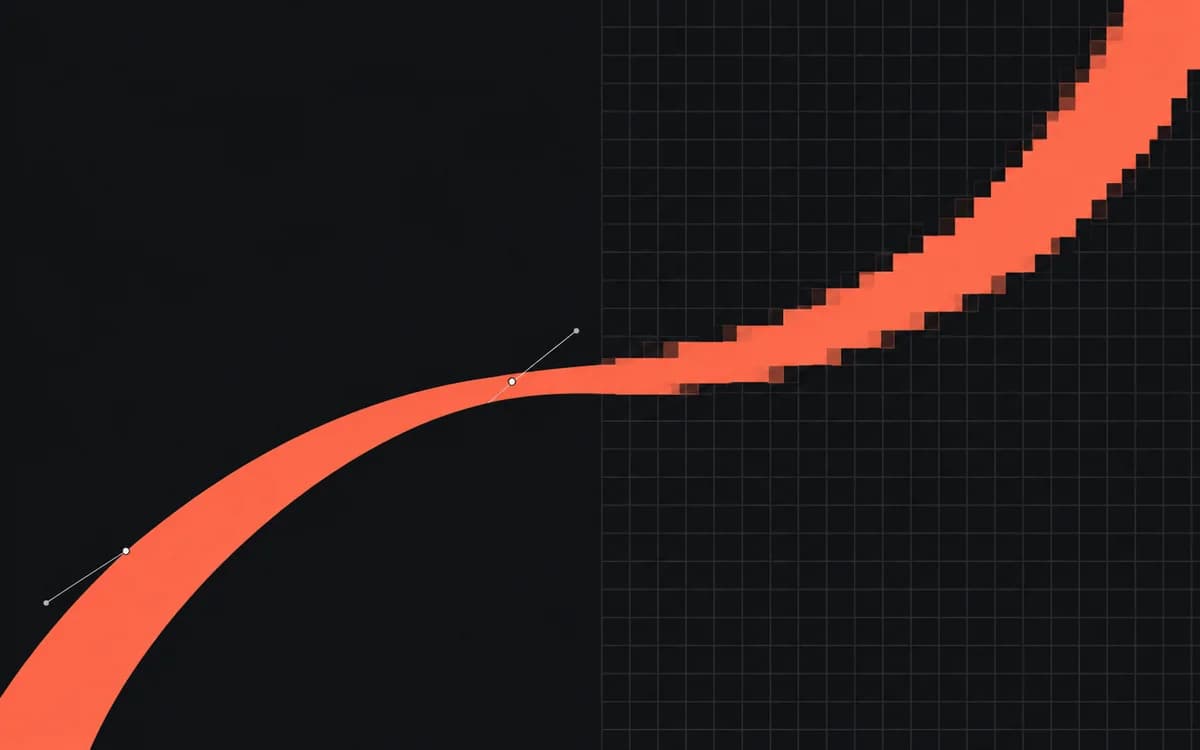
Start with the required pixel dimensions, accepted file types, and byte limit. Then compare exports from the same master until one passes both the upload limit and the visual check. Reducing file weight is useful only while the offer, product detail, and logo remain readable.
Keep the master separate
Keep the original photograph and editable artwork untouched. Generate every compression candidate from that source. Re-saving the last JPEG candidate adds another lossy step and makes comparisons unreliable.
Set the final dimensions before comparing compression. If the destination requires 300 × 250 px, reducing it to 240 × 200 may lower weight but produces the wrong deliverable. Do not assume every web format is accepted by an ad uploader: Google's uploaded image ad specification lists GIF, JPG, and PNG, with a 150 KB limit.
Inspect the parts that fail first
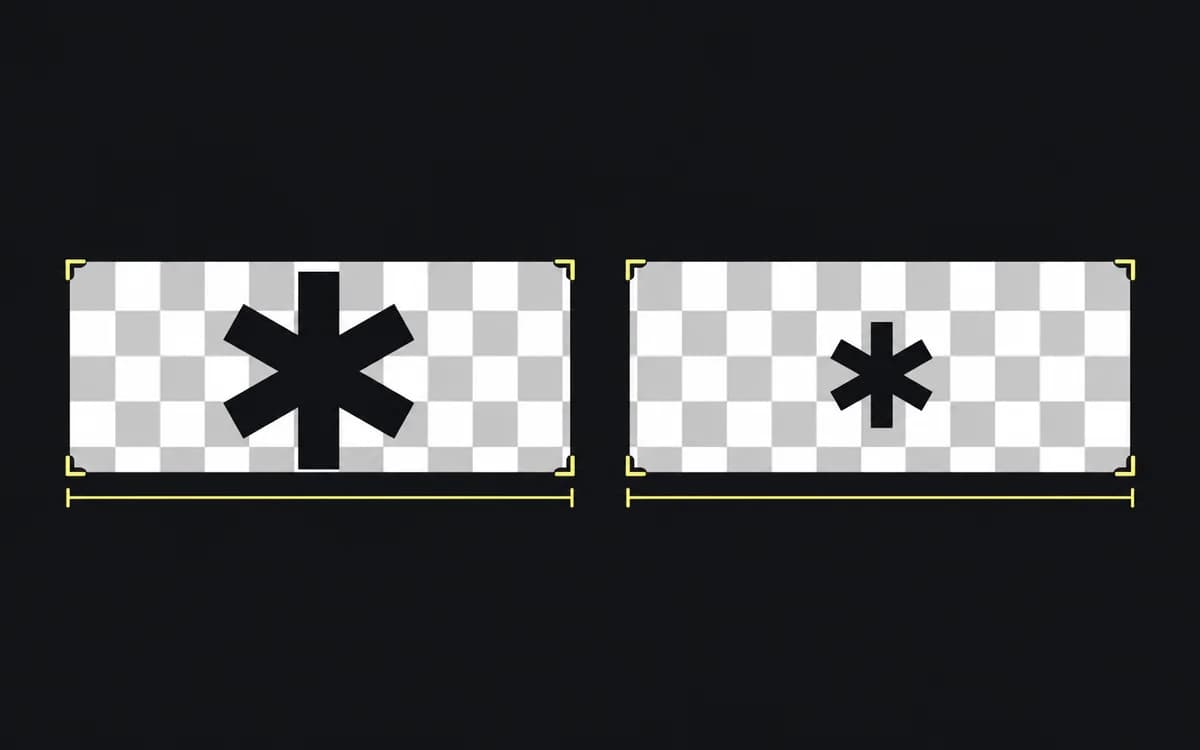
Choose three inspection areas in your actual artwork: the smallest required text, a sharp logo or product edge, and a smooth background. For a transparent cutout, add its outline over both a light and a dark background. This catches pale fringes that disappear against the exporter's checkerboard.
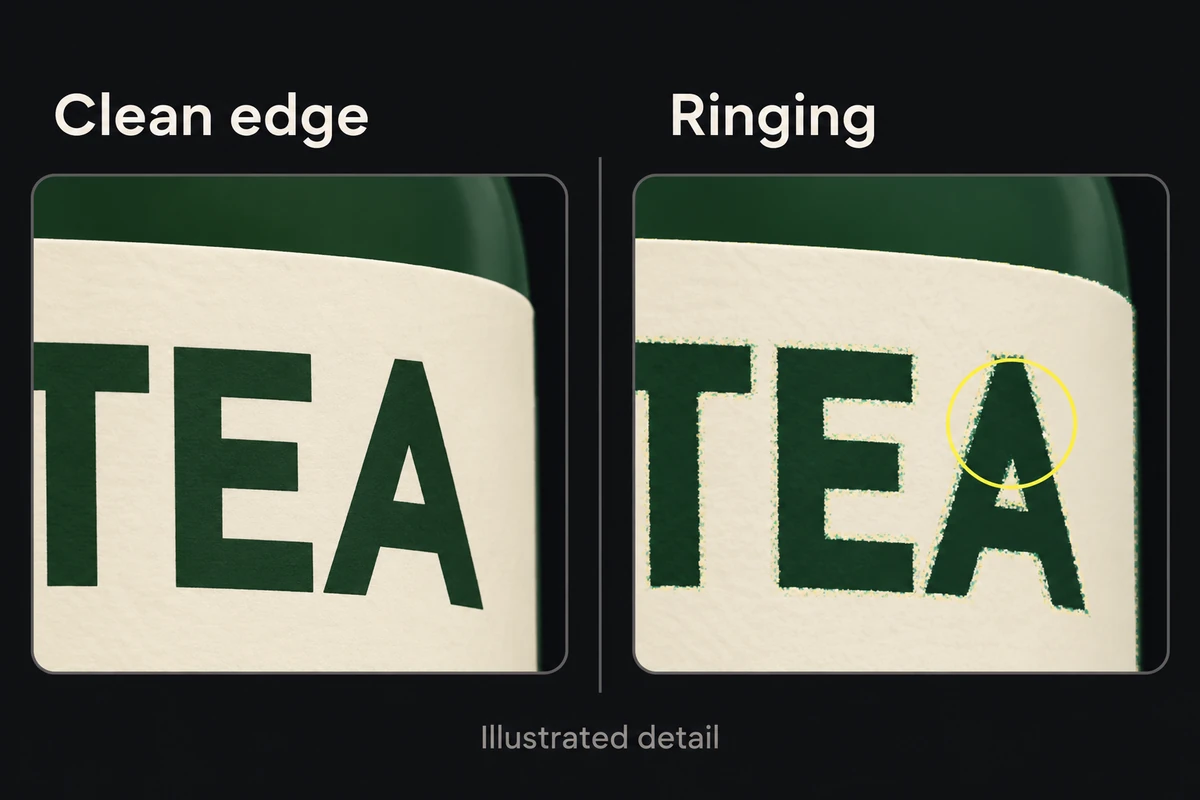
Inspect the files at the intended display size first, with the same scale for every candidate. Compare fuzzy letters, speckles around high-contrast edges, and bands in gradients. Zoom in to locate a visible problem; do not reject a usable file solely for an artifact apparent only at extreme magnification.
In a bottle ad, the photograph may survive while the small wordmark fails. Judge the candidate by that required wordmark, not by the largest area of the image.
Match the format to the artwork
Choose only among accepted types:
- For an opaque photograph, compare JPEG exports at different quality settings. JPEG discards image data and can damage sharp lettering; Adobe's JPEG guidance explains the tradeoff.
- For flat graphics, small type, or a cutout requiring transparency, compare PNG. It preserves sharp details without JPEG's lossy compression, but the resulting file may exceed the limit. Adobe documents PNG transparency and compression.
Hold dimensions and artwork constant while tuning. In an exporter with a 0–100 JPEG quality scale, try 85 and 65 as comparison points, not approved thresholds. Record each file's actual bytes and whether the inspection areas pass. If both look acceptable, try a lower setting; if the lower one fails, try between them. Stop when a visually acceptable candidate is under the limit. The same quality number in another exporter need not produce the same result.
If no accepted export passes, simplify the artwork where the brief permits it or request another delivery approach. Large photographic textures can be expensive in PNG; tiny type can suffer in JPEG. Removing a required qualification or changing the requested dimensions is not a compression fix.
Approve the exported copy
Reopen the chosen file from the delivery folder. Verify its dimensions, type, and actual file weight, then inspect the required text and edges once more. For transparency, test the delivered file over the intended background rather than trusting the export checkbox.
If the file was already soft before compression, return to the source-resolution check. More careful encoding cannot restore a label that was unreadable in the master.