Choose the presentation that leaves the product detail you need to show readable at store size. Build one frame both ways before committing the whole screenshot set. Use the same app capture, headline, and export dimensions so you can judge what the device frame costs or contributes.
Check the destination first. Google Play's screenshot guidance recommends avoiding device imagery; its Wear OS rules specifically exclude device frames. A phone mockup made for a launch page is not automatically a suitable store screenshot.
Compare the treatments
A device mockup places a real app capture inside a hardware frame, usually with space around it for a headline. A full-bleed screenshot fills the canvas with the capture. A layout with a large UI crop and a separate headline band is a third option; full bleed does not require text overlays.
Start with the screen that is hardest to explain. For a finance app, this might be a transaction list where the reader needs to recognize amounts and categories. If that evidence disappears inside the mockup, a polished bezel does not rescue the frame.
When to use device mockups
Use a frame when the hardware context answers a question: which device the app runs on, how two supported devices work together, or where the interface sits within the screen.
Place the capture inside an accurate screen mask. Preserve its aspect ratio and keep controls clear of the camera cutout and rounded corners. Check that the pictured hardware matches the app capture; a phone interface inside a tablet bezel misrepresents the layout.
Then reduce the entire composition to its likely displayed size. Can you still identify the feature without reading every label? If the headline carries all the meaning and the app is an unreadable miniature, enlarge the device, crop it deliberately, or remove the frame.
When a larger capture helps
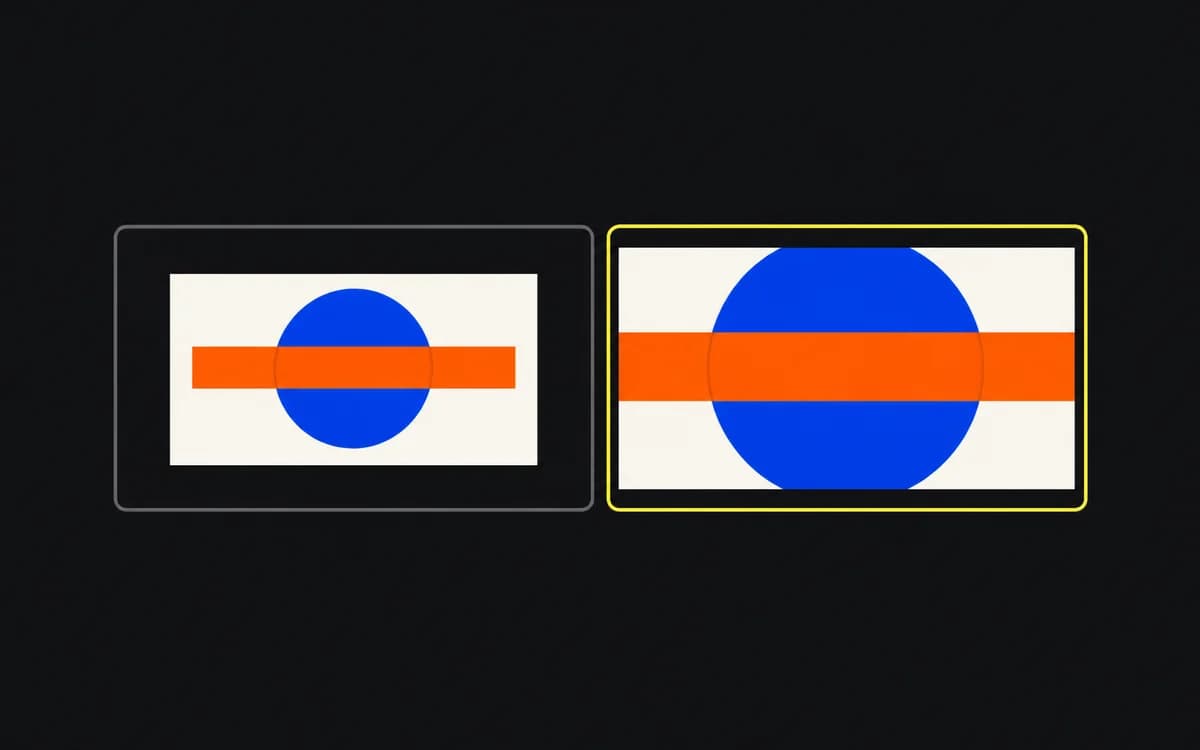
Try a larger capture when the proof depends on UI detail: a chart, map route, photo edit, or completed task. Removing the frame gives that evidence more room within the same canvas.
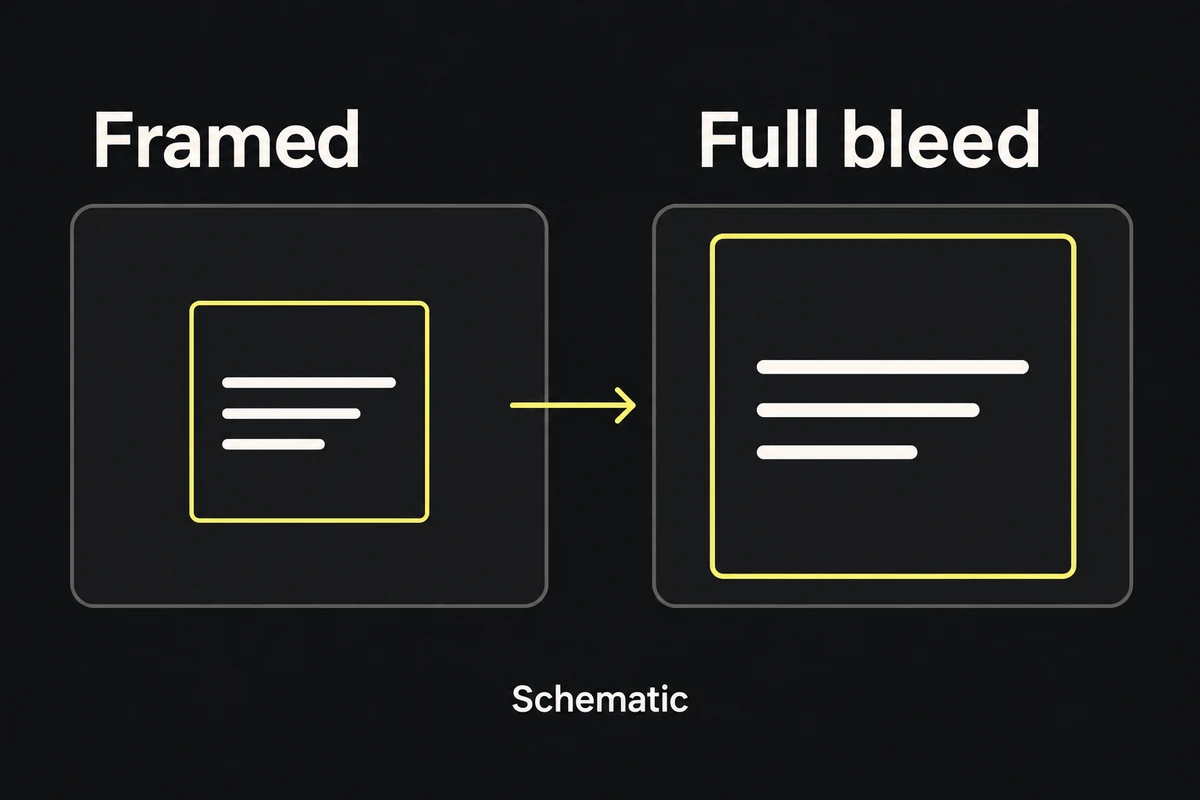
It does not make every control legible. If the original screen contains a dense table, even a full-bleed export may be too small in a listing. Choose a clearer state or focus on the relevant detail without inventing a different interface.
Keep supporting copy away from the evidence. A headline over the chart it describes defeats the reason for enlarging the chart.
Try a crop or a different viewing angle
A cropped device can retain hardware context while giving its screen more room. A focused crop can explain a small control after an earlier frame establishes the full app. Keep enough context to make the relationship understandable.
Use an editable mockup or a rendered source for angled hardware. Do not stretch or skew a finished phone bitmap to create a new viewing angle; the bezel and screen will distort together. Check that any perspective still leaves the demonstrated action visible.
You can vary framing through the sequence when each change serves a different product question. Avoid changing styles merely to make neighboring cards look different.
Choose from the two proofs
Put the two candidate frames side by side at the same store-preview size. Ask someone unfamiliar with the layout to name the app task and point to its evidence.
- Choose the mockup if hardware context helps them understand the task and its screen remains clear.
- Choose the larger capture if the frame hides the detail needed to understand the task.
- Revise both if neither makes the task apparent; the capture or message may be the problem.
Record the chosen treatment in the screenshot storyboard, including the screen crop and headline position. Check the upload specifications before exporting the remaining frames. Neither treatment proves a conversion advantage; that requires a separate test.