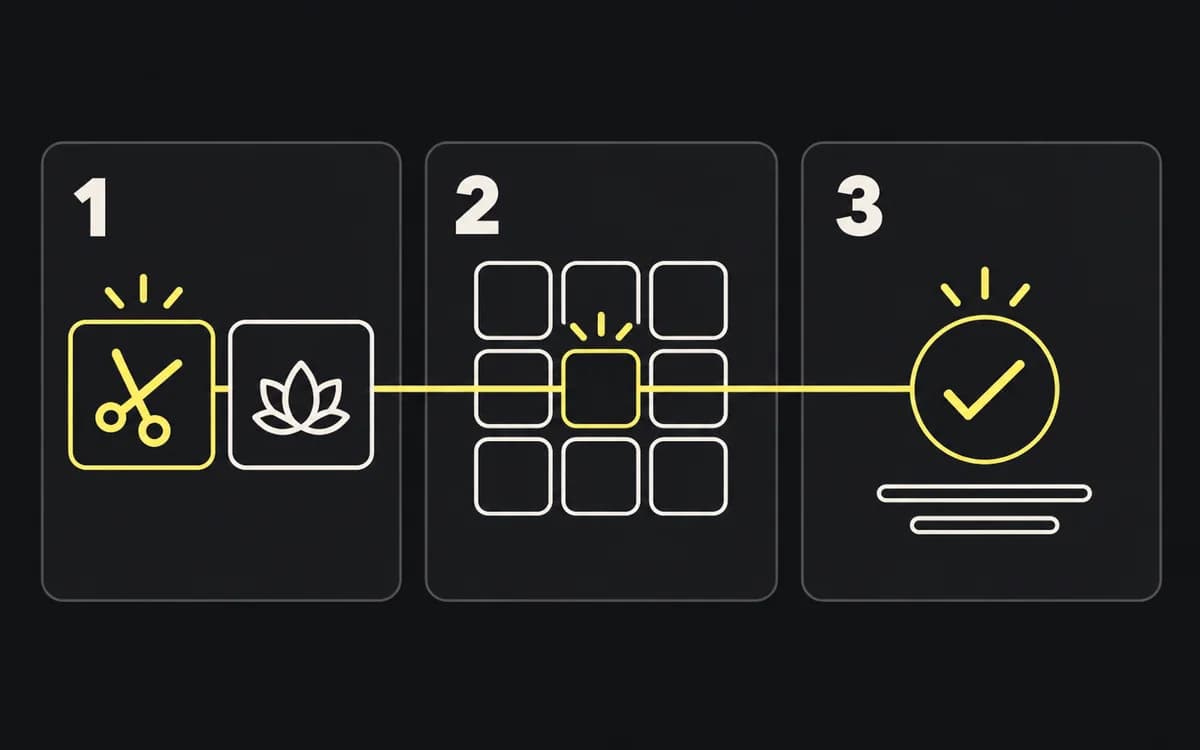
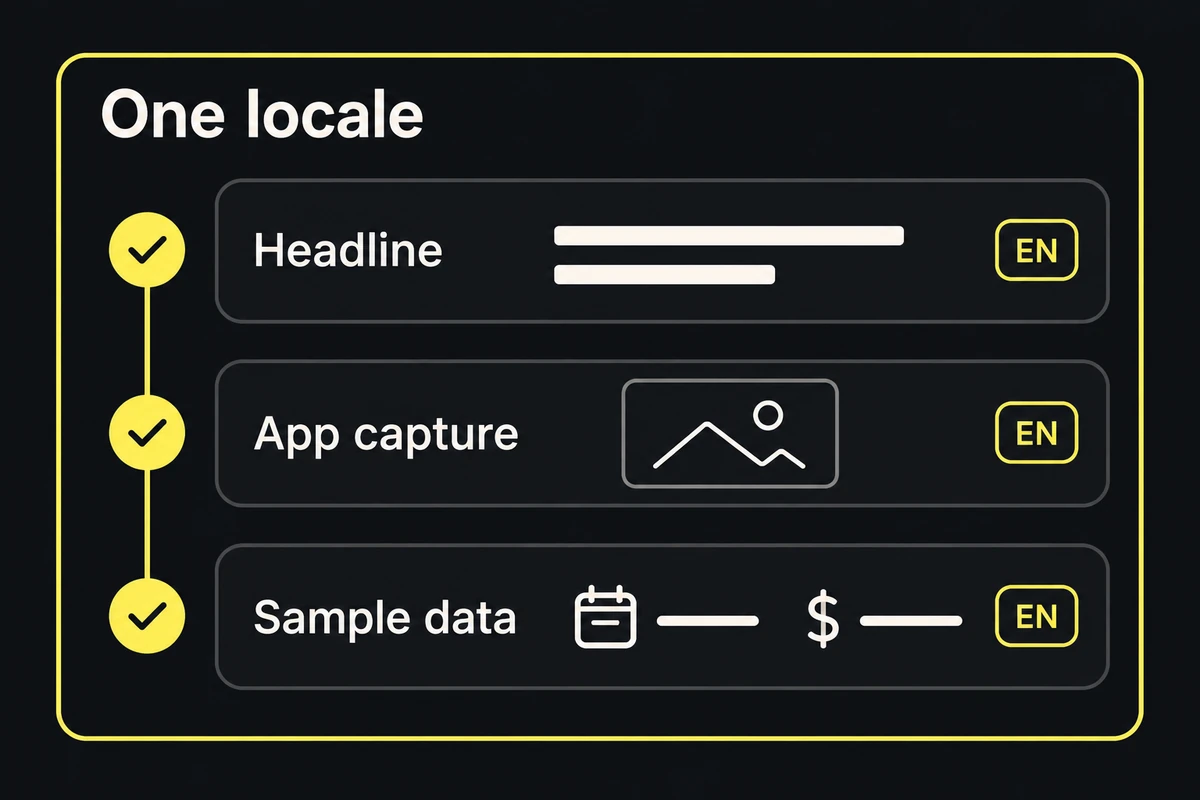
Start with an approved screenshot storyboard, editable layouts, and access to the app in each target language. Produce a separate reviewed screenshot set for each locale. Translating the headline is only one part of the job: the app capture, sample data, offer, and layout must also match what that audience can use.
Separate the story from its wording
Make a copy sheet with one row per frame: frame identifier, source headline, intended meaning, localized headline, and reviewer. Include the capture beside the text so the translator can see what the headline describes.
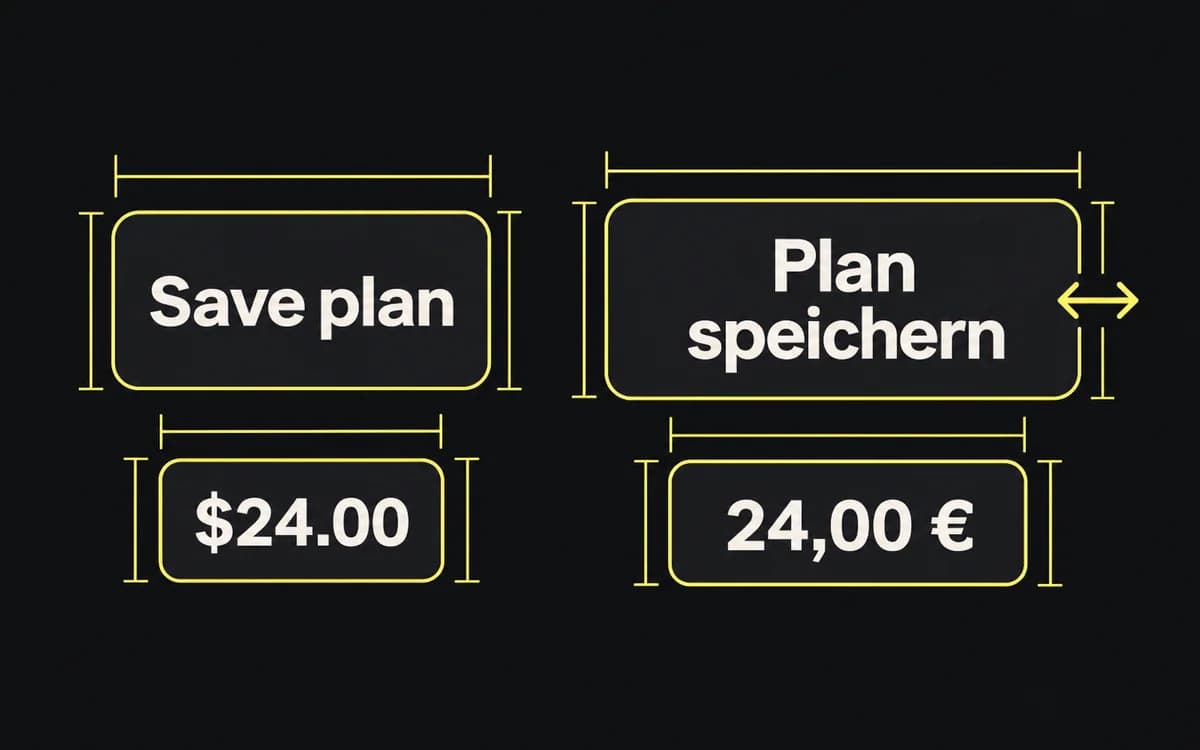
Give the reviewer the app's own terminology. If the interface calls a saved item a “plan,” avoid introducing a different term in the headline. Mark names that stay unchanged and claims that vary by market.
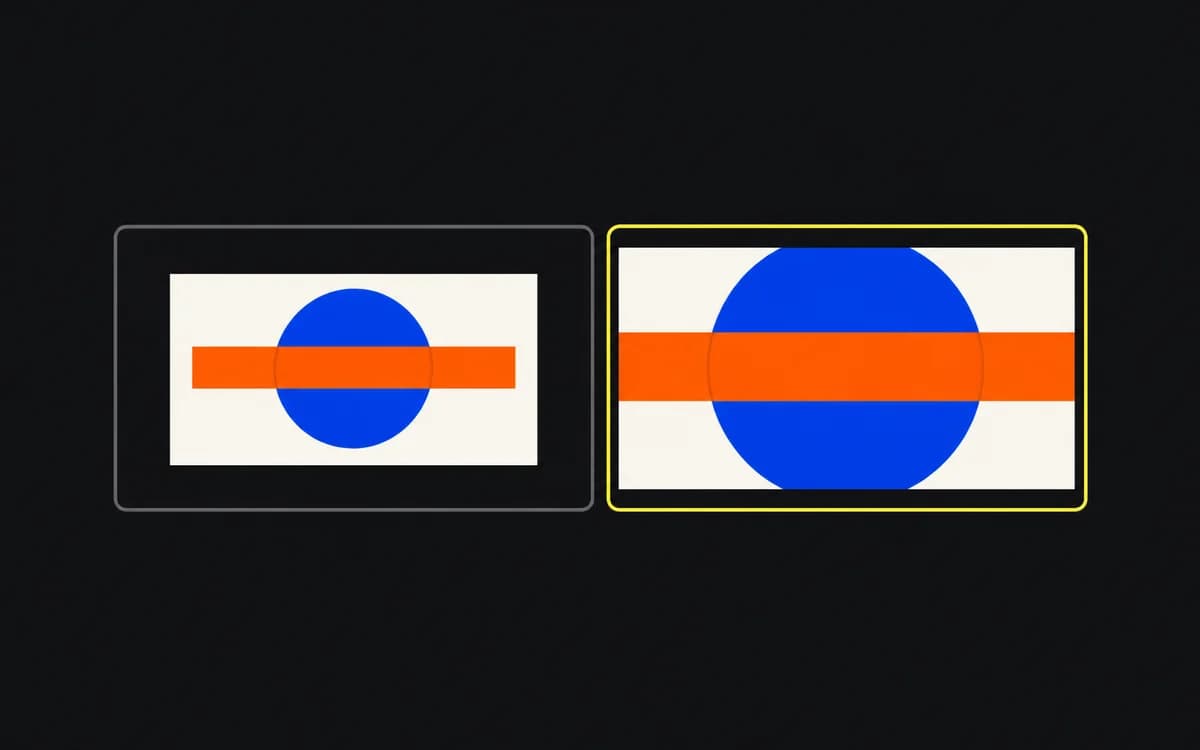
Approve meaning before fitting text. When a natural translation is longer, try a shorter equivalent with the language reviewer or give it more layout space. Shrinking every long line can leave one locale visibly harder to read.
Use product evidence from the target locale
Ask the person capturing the app to follow the storyboard's screen states in the target locale. Record the app version and keep frame identifiers consistent across languages.
- Use the interface the audience will receive. Do not imply that the app supports a language when only its marketing copy does.
- Use coherent sample data: names, addresses, dates, and currency appropriate to the demonstrated product flow.
- Keep a real currency or service location when it is part of the app's actual function; localization must not invent market support.
- Check displayed prices, plans, and trial terms against the approved offer for that market.
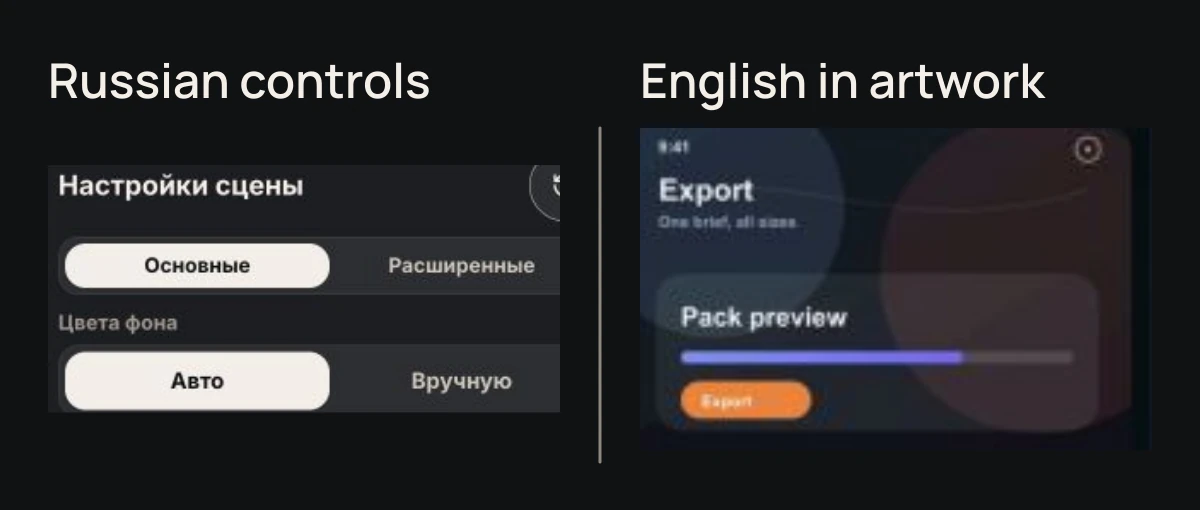
Rejected localization example, enlarged from one capture: the scene controls are Russian, but the embedded artwork still says “Export” and “Pack preview.” Translating the surrounding controls does not localize the image inside them.
Adapt the layout and capture set
Insert the approved text and captures into a duplicate of the editable source. Inspect line breaks, accents, punctuation, and any text touching the device or UI. Keep the important screen region identified in the storyboard clear.
For right-to-left text, review reading order and mixed-direction details such as numbers and brand names with a fluent reviewer. Do not mirror the finished screenshot: that would also reverse the app image and its text.
If a feature is unavailable in a market, replace that frame with an approved, supported task or omit it. Record the difference in the locale's storyboard so the publisher does not restore the source-language frame by mistake.
Review each locale as a complete set and recheck derivatives
Send the assembled set to the language reviewer at its intended display size. Have them check the sequence as well as individual sentences:
- Does each headline describe the visible screen?
- Is the language consistent across headline, interface, and sample content?
- Are any words clipped, awkwardly split, or too small after fitting?
- Do prices and availability match the target market?
After corrections, export with the store's required settings. Hand over an ordered folder per locale with the reviewer, app version, and source links recorded in the delivery list.
When a screen or claim changes, use its frame identifier to find every locale that contains it. Replace and recheck those exports before they return to the approved folder.