Prepare an export worksheet before designing the final screenshot set: store, device slot, locale, orientation, pixel dimensions, file type, and frame count. Use the slots requested by your app's listing and the official specifications linked below. A phone export that uploads successfully does not prove the tablet or localized set is complete.
Apple App Store screenshot display classes and rules
Apple's current screenshot specification lists the required device sizes and accepted pixel dimensions. It currently names iPhone with Dynamic Island (medium display) and, for apps supporting iPadOS, the 13-inch iPad display as required sizes.
Examples of accepted portrait dimensions in those rows are:
| Slot | Accepted portrait examples |
|---|---|
| iPhone with Dynamic Island, medium display | 1179 × 2556 or 1206 × 2622 px |
| iPad, 13-inch display | 2064 × 2752 or 2048 × 2732 px |
Use the exact orientation and size from the row you are supplying. These examples are not the complete catalog for Mac, Watch, TV, or other supported devices.
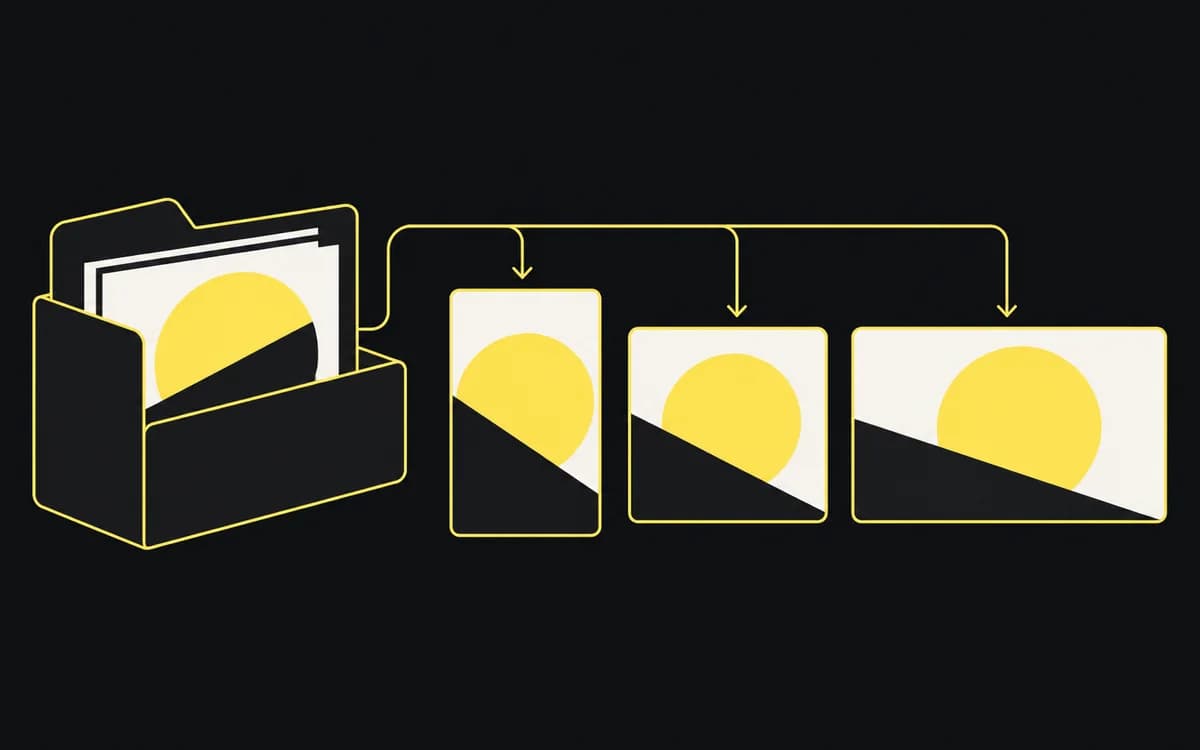
Apple allows 1–10 screenshots per device size in JPEG or PNG, without alpha channels or transparency. Its scaling rules can reuse screenshots at smaller sizes when the interface is consistent. Check the current table and App Store Connect's required slots before deciding which additional sets to omit.
Core Apple technical specifications
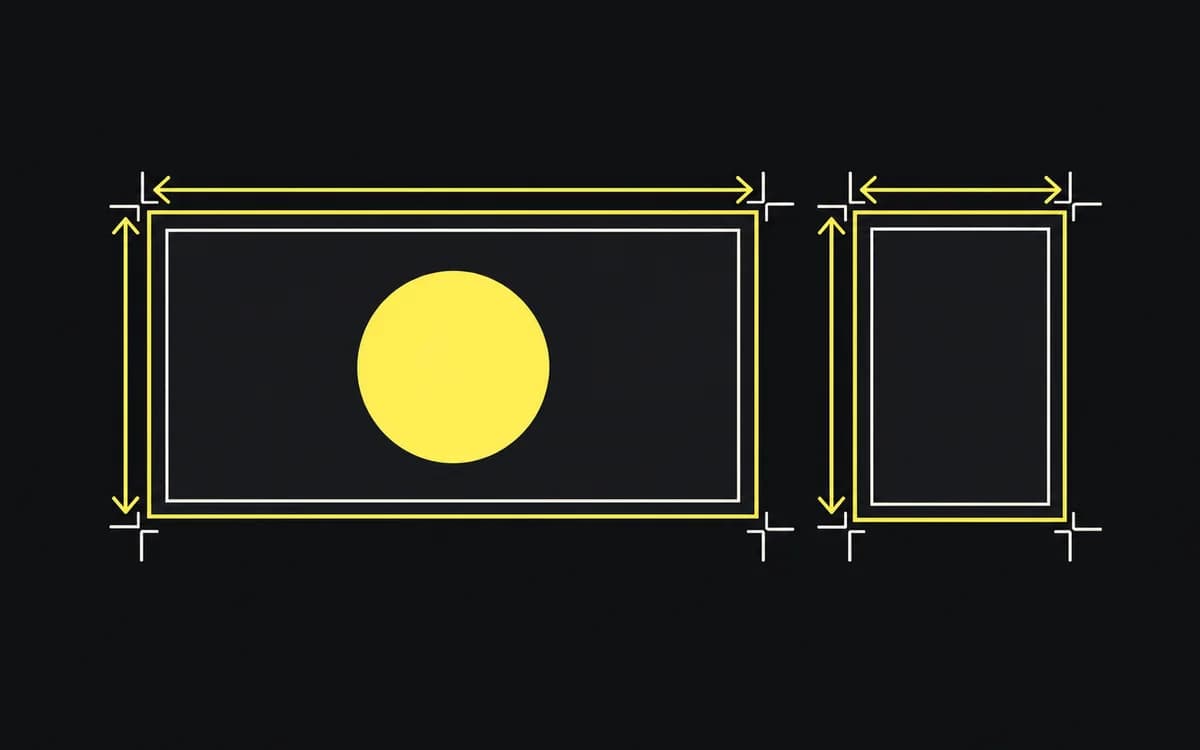
Turn the selected requirements into export presets. Name each preset after the store slot and orientation, rather than a particular phone model. Check the exported file's pixel dimensions; changing a layout's name does not resize its output.
If the editor has a transparent canvas, flatten it onto the intended background before exporting. Keep the editable source so you can replace a capture without rebuilding the composition.
Google Play Console preview asset rules
Google's preview-asset guide separates upload requirements from recommendations and device-specific rules.
For the general screenshot requirements:
- Supply at least two screenshots across the listing; up to eight are allowed per device type.
- Use JPEG or 24-bit PNG without alpha.
- Dimensions run from 320 to 3840 px, with the longer side no more than twice the shorter side.
For recommendation eligibility, the guide asks apps for at least four screenshots, with a minimum of 1080 × 1920 px in 9:16 portrait or 1920 × 1080 px in 16:9 landscape. That is a different threshold from the basic upload minimum.
Read the section for each device you support. Large-screen, Wear OS, TV, Automotive, and XR assets have additional or different instructions; do not apply the phone preset to all of them. For example, Wear OS requires square interface-only screenshots and excludes device frames.
Safe areas, status bars, and layout guidelines
Inspect the product inside the exported image as well as the outer canvas. A correctly sized file can still have a button hidden under a mockup cutout, a headline covering a chart, or a stretched interface.
Keep the capture's proportions intact. Remove personal notifications and temporary debug overlays. If a hardware frame is used, verify its screen mask against the capture. Review both the full-resolution file and the smaller store preview; technical acceptance does not establish readability.
Screenshot delivery and pre-submission checklist
Work through the worksheet one store/device/locale row at a time:
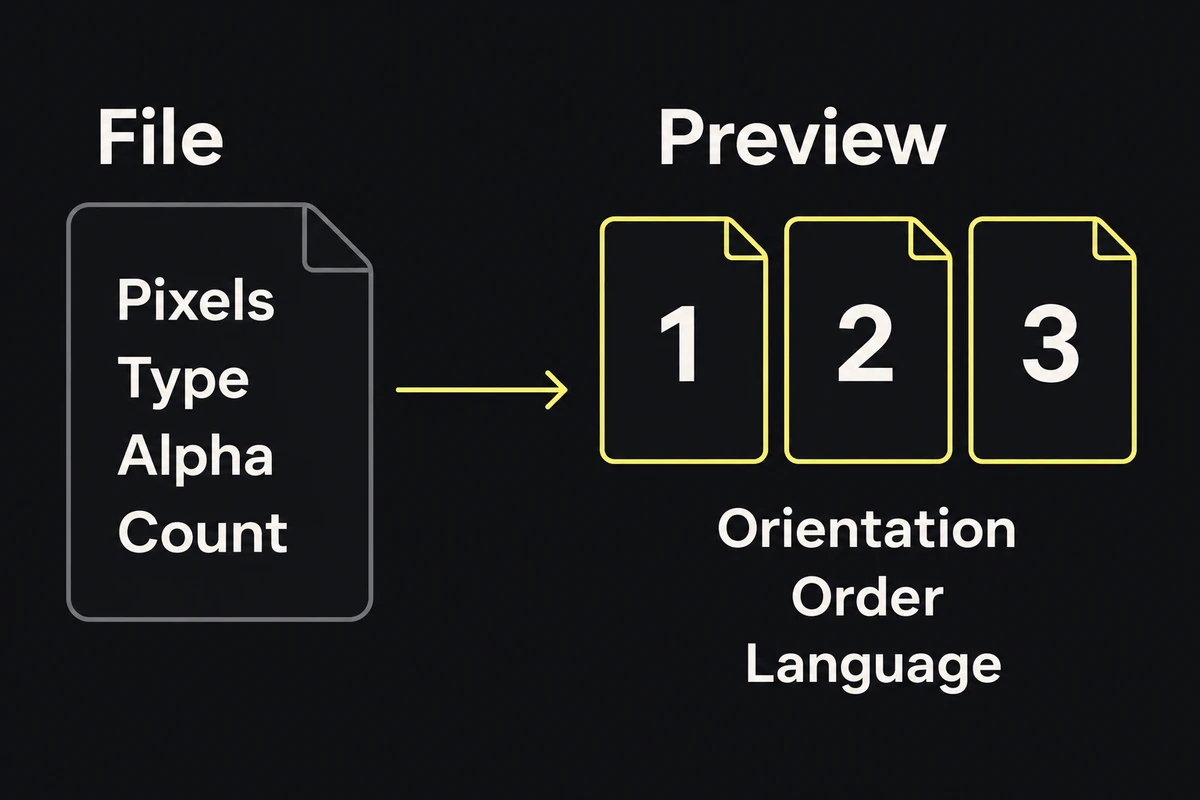
- Compare the exported dimensions, file type, transparency, and count with that slot's current rules.
- Upload the files into the intended listing and locale. Resolve validation errors against the actual file and slot rather than trying arbitrary resizes.
- Check the processed preview for orientation, order, missing frames, and the correct language.
- Record which file belongs in each slot, so a later replacement cannot silently change the sequence.
An accepted upload is a file check, not a promise of store review approval. Keep content checks in the app promo checklist, and use the localization guide when a locale needs new captures.