
A cream stripe covers a violet satin photograph. The stripe is in the right place, but the satin's bright ridge disappears beneath it. Reducing the stripe's opacity brings back the ridge and weakens every other part of the graphic too.
Use Blend If when the reveal should depend on the tones underneath. In this exercise, bright satin shows through a digital overlay while darker regions remain covered. This is a compositing treatment, not proof of how a real ink would print on fabric.
Choose which layer supplies the condition
Keep the satin on its own layer and the stripe on a layer above it. Establish the stripe's shape and placement first. If artwork must follow a photographed plane, finish the perspective fit before adjusting its blend.
Select the stripe and open Layer → Layer Style → Blending Options. Near the bottom, set Blend If to Gray. Two slider rows answer different questions:
| Row | Whose tones control the reveal? |
|---|---|
| This Layer | The selected stripe layer's own pixels |
| Underlying Layer | The visible image beneath the stripe |
Use Underlying Layer for the satin highlight. A flat cream stripe has little tonal variation of its own; selecting This Layer would test that cream instead of the ridge beneath it. Adobe documents the two ranges and their blending behavior.
Find the highlight, then ease the cutoff
Move the white Underlying Layer slider left until the bright satin begins to show through. Start by making the effect obvious enough to identify the affected region. Keep the stripe's blend mode and overall opacity unchanged during this test.
A hard threshold can punch a sharply bounded hole through the graphic. The right region may be exposed while the edge still looks wrong. Do not repaint the stripe to conceal that edge yet.
Split the slider to soften the transition
Hold Alt on Windows or Option on macOS and drag one half of the white slider triangle. Separate its halves to create a range of partial blending. Adjust that range while watching the same highlight, rather than searching for a universal pair of numbers.
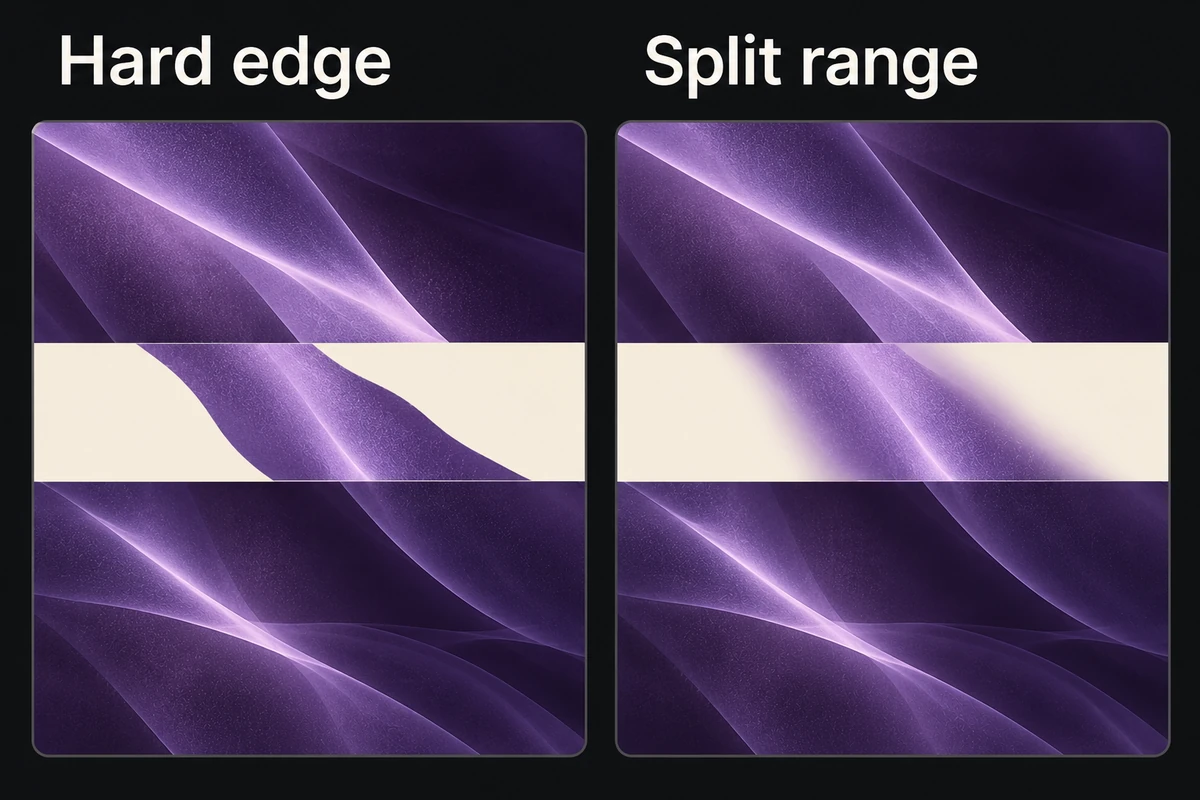
The schematic keeps the highlight and stripe fixed; splitting the range softens only the transition.
Watch the graphic as well as the satin. A broad partial range can make most of the cream stripe faint. Narrow or reposition the range when it reveals the ridge but also erases the parts that must remain readable. Inspect at the intended display size; a subtle transition at high zoom may vanish when the ad is reduced.
Keep brightness from becoming an accidental shape mask
Blend If cannot identify satin, a printed logo, or a reflection. Any underlying region meeting its tonal condition can show through. Add a layer mask when the reveal must be confined to one material or one part of the stripe.
Change the photograph's exposure temporarily and watch the reveal move. Undo that test. It demonstrates why later tonal edits underneath can change this composite even when nobody touches the Blend If sliders.
Before exporting, compare the treatment enabled and disabled. The stripe's outer shape should remain intact, the intended highlight should read through it, and unrelated areas should stay protected. Save the layered document so both the tonal range and shape mask remain adjustable. Reopen the final export to check that the surface still reads at the size the viewer receives.


