
A photographed shadow comes with a pale rectangle. A light effect brings a black background. Lowering opacity weakens the useful shadow or light along with its unwanted backdrop. Start by asking which source tone should leave the artwork underneath unchanged.
Use a colored campaign image and keep the effect on its own layer above it. Duplicate the document for this exercise. You will compare three modes at full opacity, choose one for a specific job, then adjust its strength.
Choose the neutral tone first
Add a temporary test layer containing three opaque blocks: black, middle gray and white. Place it across a colored part of the artwork. Select that layer and use the blend-mode menu at the top of the Layers panel. Keep its opacity at 100% while testing.
Adobe's mode descriptions give these useful starting points:
| Mode | Source tone that leaves the base unchanged | What the other tones do |
|---|---|---|
| Multiply | White | Darker source tones darken the base; black produces black |
| Screen | Black | Lighter source tones lighten the base; white produces white |
| Soft Light | Middle gray | Darker tones darken; lighter tones lighten without the same black/white endpoints |
Switch between those three modes without moving the strip or changing the base. Watch the unchanged section first. This is more useful than scrolling until the whole image happens to look dramatic.
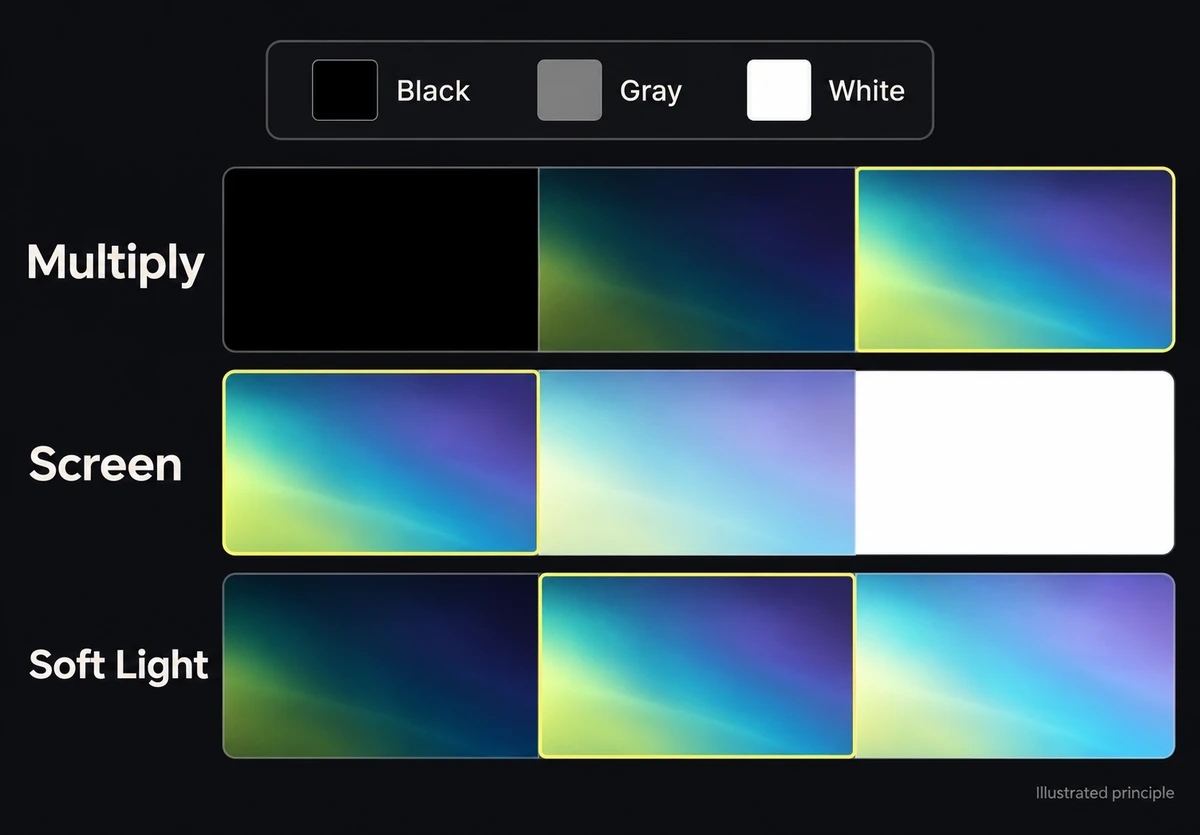
The schematic keeps the artwork fixed and changes only how the upper layer's dark, gray and light areas blend.
Match the mode to the effect's background
Hide the test strip and select the real effect layer.
For a dark shadow photographed on white, try Multiply. White can leave the colored base visible while the shadow darkens it. Inspect the supposedly white paper: a pale gray rectangle still darkens the ad. Reduce that residue in the effect source or constrain it with a mask; simply choosing Multiply does not make the paper white.
For a light streak on black, try Screen. The black region can leave the base unchanged while the bright streak lightens it. If a charcoal rectangle remains, the source is not actually black there. Check its edges rather than reducing the entire effect until the streak disappears too.
For a texture or dodge-and-burn layer built around middle gray, try Soft Light. Check the product label and shadows: the treatment can change their contrast even when the neutral part seems absent. It is an effect, not a guarantee that all existing detail survives.
Set the behavior before the strength
After choosing a mode, lower opacity to judge its contribution. Adobe distinguishes layer opacity from blending calculations: opacity controls visibility; the mode determines how the layers combine.
Toggle the effect off and on at the intended viewing size. Ask a specific question: did the shadow become too dense, did the light wash out the label, or did the texture hide a seam? Change the effect's opacity or local mask for that problem. Do not repair a darkened product by brightening every layer underneath it.
Keep geometry separate. A believable blending calculation cannot make a shadow point toward the light or fit a graphic to the wrong photographed plane. The product composite guide covers those spatial checks.
Check the actual deliverable
Save the layered source, hide the temporary strip and inspect the exported ad. Confirm that no rectangular stain appears over a different background color elsewhere in the composition.
If the deliverable is a reusable cutout, test its real alpha channel on another background. White disappearing in Multiply does not create transparency; a flattened file can still contain every background pixel. Use the mask guide when the job is to hide part of the source rather than combine its tones.


