
A rectangular design floats above a photographed carton. Its color is plausible, but its edges stay parallel to the screen while the box recedes. Lowering opacity makes it fainter; it does not attach the design to the panel.
For this exercise, use one blank, flat carton face with all four corners visible and a separate graphic. The example's orange carton and fuchsia mark are constructed editorial subjects. The same method can place artwork on a flat poster or sign; a curved bottle needs a different treatment.
Establish the panel before placing the graphic
Find the four corners belonging to one face. Follow its top and bottom edges to distinguish the front from the side, lid, and folded rim. The graphic must stay on the selected plane.
Prepare the flat artwork at the panel's intended physical proportions before mapping it into the photograph. Use the panel dimensions, original flat layout, or packaging dieline; do not infer physical proportions by measuring the oblique image. If the panel is twice as tall as it is wide, use a matching artwork canvas. Keep a circular mark circular inside that canvas. Dragging a square design across a tall face can stretch it before perspective has even been considered.
Use an editable mockup when the source provides one. For this photograph exercise, open the carton image in Photoshop and choose File → Place Embedded to add the prepared artwork above it. Confirm the initial placement with Enter on Windows or Return on macOS. Photoshop creates a Smart Object, preserving the flat graphic separately from its transformation; Adobe explains placing a file.
The artwork's rectangular canvas must represent the whole panel, including space around the mark. If you place only a tightly cropped logo, its transform corners represent the logo's bounds; pulling those to the box corners would make the logo fill the face. Prepare a panel-sized PSD with the logo in its intended position, and place that PSD instead.
Fit the corners before treating the surface
In Window → Layers, select the placed artwork's image thumbnail, then choose Edit → Transform → Distort. Drag the four corner handles of its bounding box onto the four panel corners; dragging inside the box moves the whole graphic. Press Enter or Return to commit, or Escape to cancel a bad fit. Adobe lists Distort and the other Transform operations.
Work around the face in order: upper left, upper right, lower right, lower left. Recheck the first corner after placing the last. A four-corner fit should align the whole plane, not merely make one edge look straight.
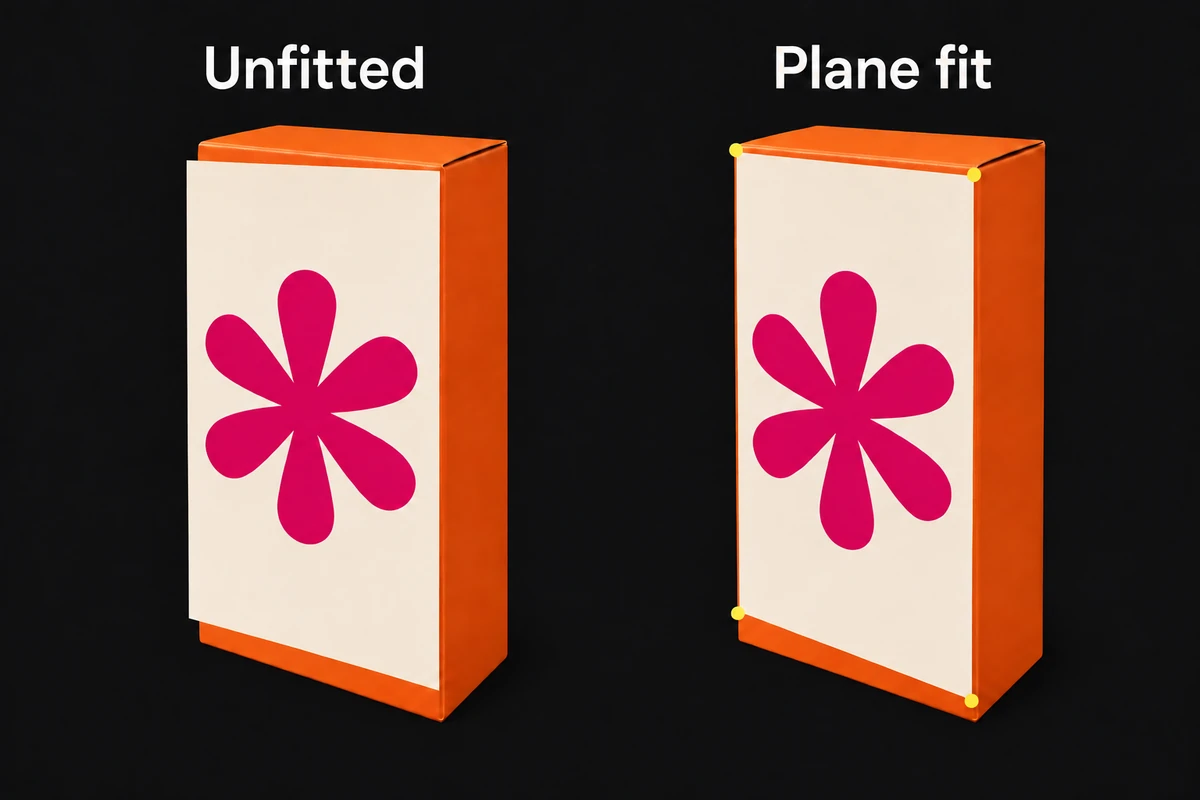
Illustrated geometry: the left overlay misses the panel's corners. The right artwork follows the same flat face. This comparison explains the relationship; it is not a captured transformation or a measured mockup.
Inspect the graphic's outer edges and an internal line or repeated motif. They should share the panel's direction. If the near edge fits but the far edge floats across the box's side, repair the mapping before changing opacity or color.
Let geometry and surface answer different questions
The fitted graphic still sits above the photograph's pixels. Depending on the intended material, it may need a masked tonal correction, surface variation, or a restrained blending treatment. Add those after the corner fit, keeping them separate from the artwork.
Hide the treatment to check the mapping. If the design stops fitting when its shadow or texture disappears, the geometry was never resolved. Conversely, perfect corner alignment cannot make a matte printed label produce the reflections of glossy foil.
For tone-dependent surface detail, Blend If can let selected underlying tones show through. It cannot bend a graphic or invent photographed light that was never present.
Test a replacement on the same face
Double-click the Smart Object's thumbnail to open its contents. Place the replacement graphic in that document, hide the old graphic, and keep the inner canvas dimensions unchanged. Choose File → Save, then return to the carton's document tab. Check whether the new graphic stays on the face and whether any shape-specific mask still makes sense. The editable ad guide explains the replacement workflow in more detail.
Inspect the exported image at its intended display size. The plane should read as one surface, with no spill onto the lid or side. Keep the original photograph and editable graphic with the layered file. Four corners can map an existing flat face; they cannot reveal a hidden side, wrap a cylinder, or change the photographed object's viewing angle.


