
The headline fits, but one gap makes a word look split. Tightening the entire line can close that gap while pushing the other letters into each other. Identify whether the defect belongs to one pair or the whole selected range before changing spacing.
Start with live type in a duplicate of the ad. Keep the font, weight, size, wording and text-box width fixed. Use an uppercase word such as WAVES to practice: the diagonals around A and V make the pair easy to inspect. Then apply the same method to the actual headline.
Look at the space, not equal distances
Read the line at its intended display size. Find the gap that interrupts the word's rhythm, then enlarge it to see why. A ruler showing equal distances between bounding boxes cannot account for the open space beside a diagonal or a round letter.
Begin with the font's Metrics kerning. It uses the font's supplied pair information. Adobe also offers Optical kerning, which adjusts spacing according to letter shapes. Test it when the built-in pairs are limited or when mixing faces or sizes; it is not a universal improvement over the type designer's spacing.
Choose the automatic starting point before making a local correction. Switching the whole line to another method afterward changes the comparison you were judging.
Change the pair before the whole line
- Select the Type tool and place the insertion point between the two problem letters. Do not select the whole word.
- Open the Character panel and adjust Kerning. A negative value closes the pair; a positive value opens it.
- Make a small change, return to the intended viewing size and read the complete word.
- Compare with the untouched duplicate. Keep the version in which the word reads continuously without making the pair touch or form a misleading shape.
In WAVES, correcting an oversized A–V gap should leave W–A, V–E and E–S alone. If all those gaps move, inspect your selection and the field you changed. A selected range and a Tracking adjustment perform a different job.
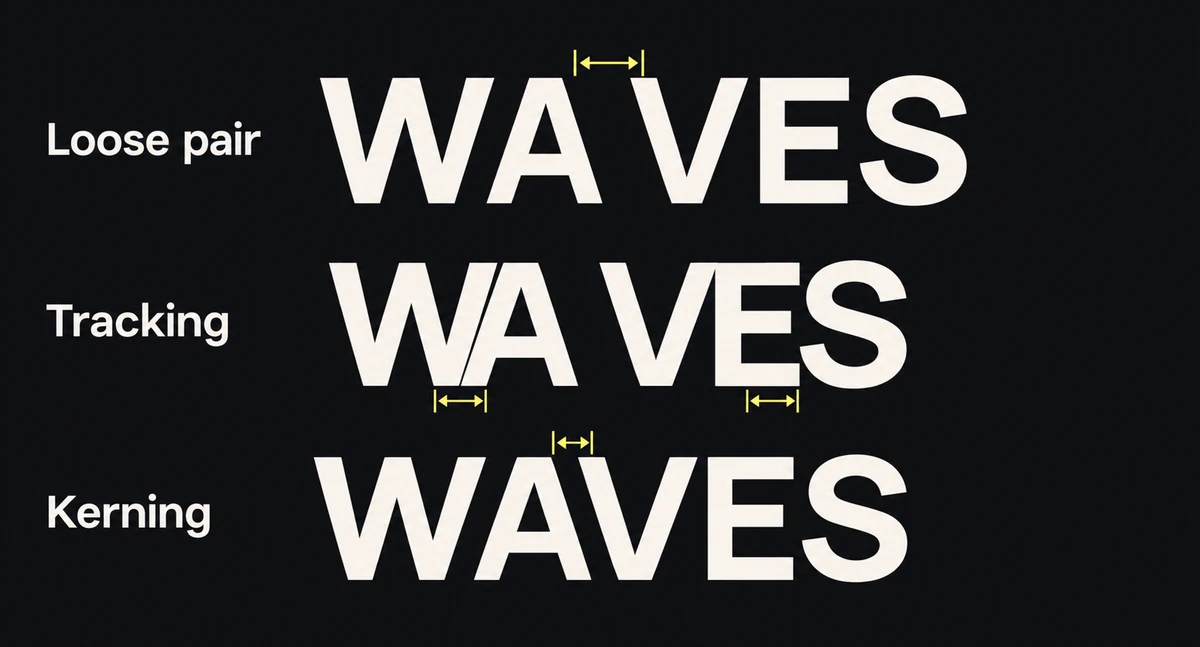
One word and type size: changing every gap crowds the middle line, while changing one pair fixes the uneven spot.
Use tracking for a range-wide change
Select the word or line when its spacing is consistently too open or too dense. Change Tracking in the Character panel, then review the full selection. Tracking is useful when the entire line needs a more open or compact rhythm; it is an expensive way to repair one outlying pair.
Adobe notes that tracking and manual kerning accumulate. A custom pair can remain tighter than its neighbors after you change tracking, so recheck the pair after the global adjustment. Avoid stacking small unexplained corrections until nobody can tell which control created the result.
Do not squeeze tracking merely to rescue a headline that is too long. If normal spacing stops fitting, revisit the text-box width, line break or approved wording. The readability guide handles those layout choices.
Check the exported headline at reading size
Export at the required dimensions and compare with the live-type source at the same display width. Check that letters remain distinct and the word no longer appears split. A pair that looks elegant at extreme zoom can merge after reduction.
Repeat the check after a font, weight, wording or language change. A correction belongs to the actual letters and face, not to the headline layer as an abstract setting. Finish when the word reads smoothly, neighboring gaps remain open and the delivered file preserves that result.


