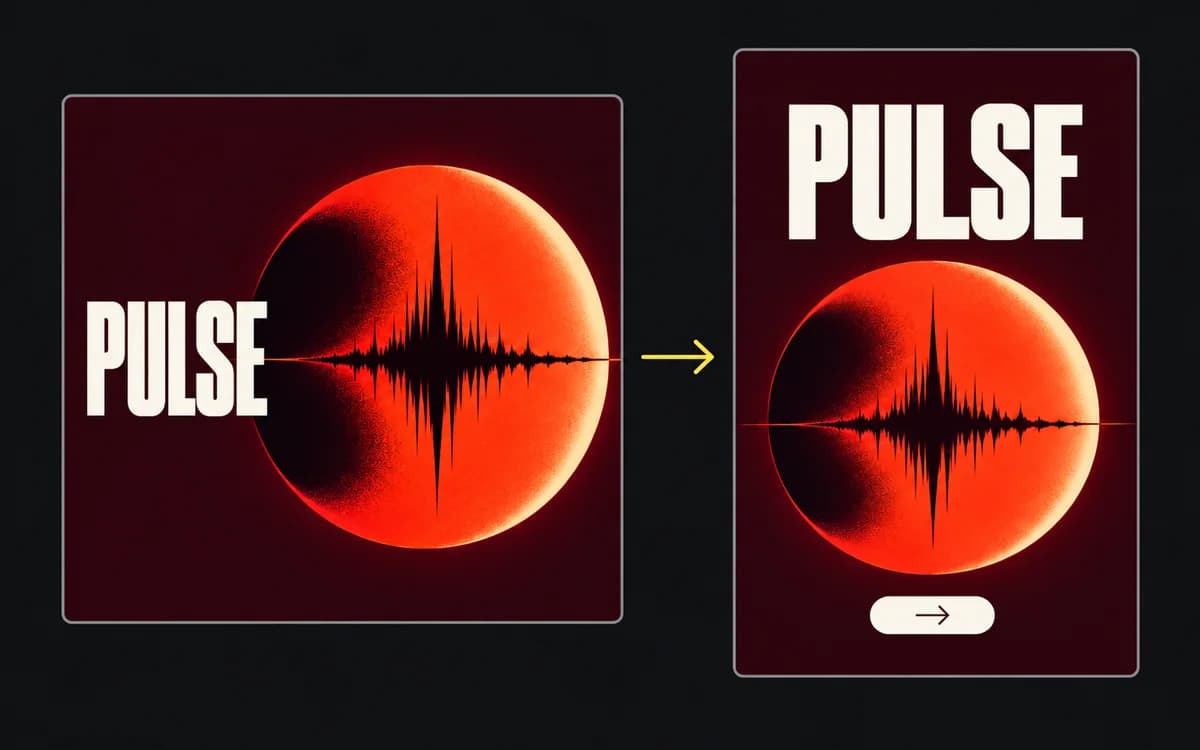
Check ad text at the size the placement displays it, then fix the specific failure: text too small, competing hierarchy, weak background separation, or damaged export edges. You need the final dimensions and expected display width; the font size shown in the design editor is only a starting point.
Review the design at intended viewing scale
Calculate the display scale: display width ÷ export width. If a 1080 px-wide image appears at 360 px wide, the factor is one third. A 48 px font size scales to 16 display pixels; 24 px terms scale to 8. Those figures explain the reduction, not a universal readable minimum: letterforms and viewing conditions still matter.
Preview the export at that width without zooming, then open it in the target placement on a phone. Read the offer and its condition aloud from the screen. Mark the first word or line you cannot read comfortably. Diagnose at enlarged zoom only after identifying the failure at normal size.
Give each text line one clear job
Choose the line that carries the offer, then separate its role from support and action. For a scheduling service, “Book your next appointment” can lead; “Choose an available time” explains the action. Adding another equally prominent “Fast, easy booking” repeats the job and takes space from the useful words.
If a badge competes with the offer, reduce or remove the optional badge before shrinking the headline. If the headline wraps badly, adjust its text-box width or use approved shorter copy. Keep phrases together: “First month / free” is easier to parse than “First / month free” when the offer is a free first month. Recheck the qualification after changing a line break.
Use line spacing that keeps neighboring lines distinct. Check counters such as the centers of “e” and “a,” and letter pairs that merge in the chosen weight. If they close at display size, try a sturdier or more open face, more space, or larger type; making the same cramped letters bolder can worsen the problem.

Protect contrast and background separation
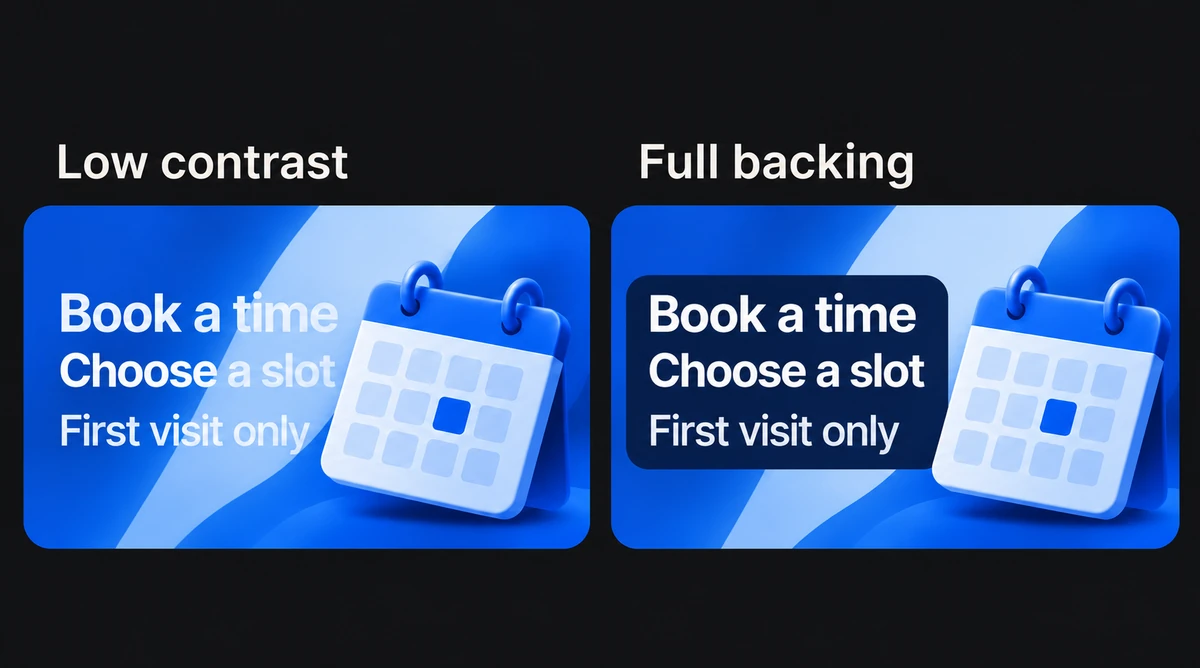
Check every word against the background directly beneath it. White text may start over a dark jacket and disappear where the line crosses a bright window. Sampling one dark corner does not establish contrast across the line.
Move the text into a consistently quiet area, change its color, or add a solid backing or gradient behind the complete text group. Include its qualification. Inspect the backing at its weakest edge: a gradient that fades before the last word leaves the original problem there. Check that it has not hidden the product detail supporting the claim.
Handle disclaimers without squeezing the headline
Put required terms in the layout before optional supporting copy. A price and “first month only” need to be read together; pushing the latter to the bottom edge can conceal the condition even when the price is clear.
If the approved terms do not fit at readable size, remove optional copy or change the arrangement. Ask the copy or policy owner for approved shorter wording when needed. Do not move a required condition off the ad simply to clear a visual review. A placement that cannot hold the required offer may need a different concept.
Pre-flight typography check
Compare the export with the source at the same display width. If the source reads but the export does not, inspect raster dimensions and compression settings. If both fail, return to type, copy, or layout rather than sharpening the delivered image.
Finally, use the placement preview to verify that captions and controls leave the entire offer readable. Record a failure as a specific line and cause: “condition becomes unreadable at 360 px display width,” rather than “make typography pop.”