
Keep logos and geometric artwork as vectors when you have a genuine vector source. Export the finished ad in a format its destination accepts. Those are separate decisions: a campaign can use an SVG logo inside its editable master and deliver a PNG image to the ad platform.
Keep the right working source
SVG describes shapes and can keep their edges sharp when scaled. PNG stores a fixed pixel grid and uses lossless compression; it can also preserve transparency. The W3C PNG specification defines its color and alpha representations.
An SVG can contain a photograph through an embedded or referenced raster image, as the SVG image specification describes. That photograph remains raster. Putting a small PNG inside an SVG does not recover missing image detail or make the photograph resolution-independent.
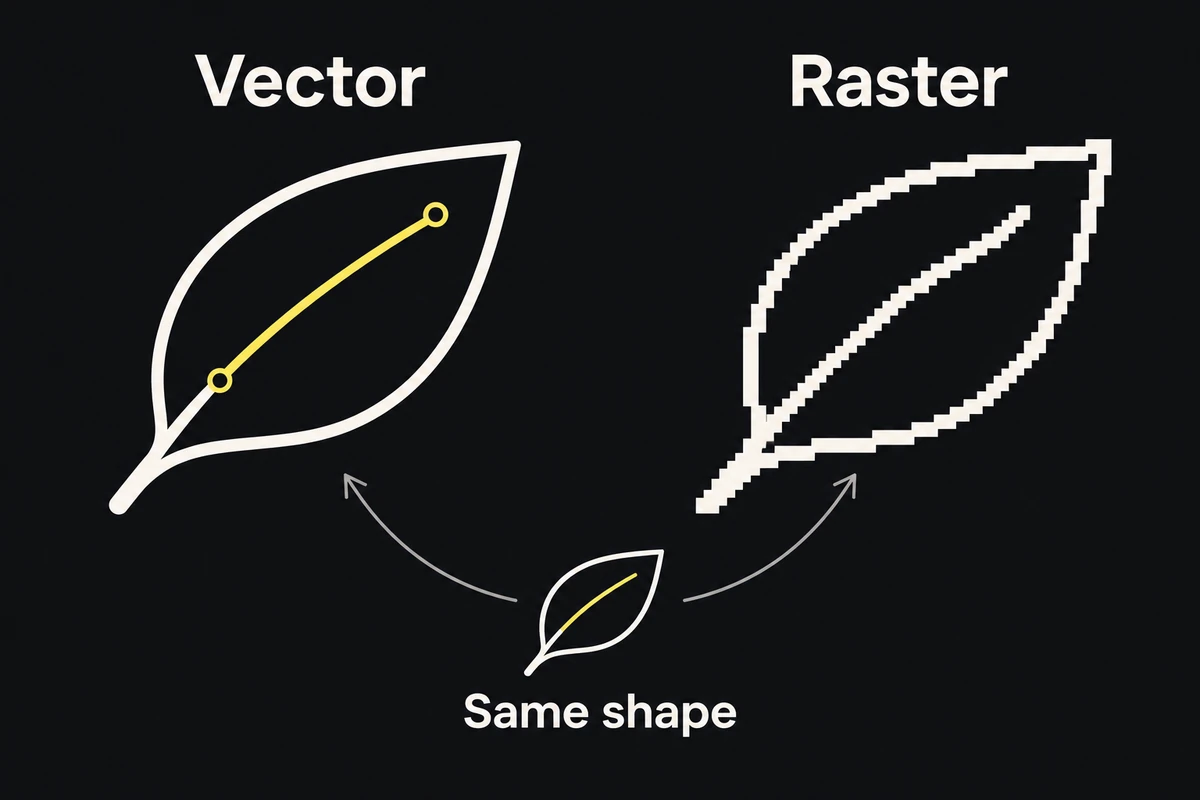
For source preparation, ask what you are editing:
- A logo or line illustration: retain the original paths rather than flattening them early.
- A photograph or detailed cutout: retain a high-quality raster source with enough pixels for the crop.
- A complete static ad: retain its editable composition, then export at the receiving placement's required dimensions.
SVG is not automatically smaller. Dense paths, filters, and embedded images can outweigh a raster export. Compare actual files when size matters.
Check the exact upload route
Read the specification for the exact ad type. Google Ads' uploaded display ad specification lists GIF, JPG, and PNG for image-ad uploads. Its HTML5 package rules are a different route and explicitly discuss SVG inside a ZIP package. Acceptance inside HTML5 does not mean a standalone SVG is accepted as an image ad.
Do not rename an SVG to .png; export a raster file. For HTML5, check the permitted resources, packaging, and account eligibility before building that route. A browser opening the banner successfully does not prove that the platform will accept its package.
Use the display ad checklist to check the completed ad against the placement, rather than treating one format as universally accepted.
Choose a format for each asset
| Asset | Keep as the working source | Delivery decision |
|---|---|---|
| Logo or geometric icon | Approved vector master | Use SVG where supported; rasterize from that master when required. |
| Product photo | High-quality raster original | Compare accepted raster formats at the final crop and dimensions. |
| Transparent product cutout | Editable mask plus an alpha-capable raster copy | Preserve transparency only when the destination and composition need it. |
| Headline and offer | Editable text with the correct font | Check the final rendering; a vector container does not prevent a missing-font substitution. |
| Completed static ad | Editable composition with linked sources | Export the whole ad to the accepted upload format. |
A logo-only transparent PNG may be appropriate for one handoff and inadequate as the only master for later large formats. Keep the source rather than asking the next designer to enlarge the delivery copy. For cutout edges, use the transparency guide.
Bring the export under its byte limit
Start with the destination's pixel dimensions and byte limit. A higher-density export is useful only when that delivery route supports it; doubling a fixed-size ad's dimensions is not a universal quality fix. The resolution guide explains the distinction between source detail and export size.
For a heavy PNG, first confirm that the export dimensions match the requirement. Crop unused transparent canvas from component assets before placing them, while preserving the finished ad's required canvas. Then compare optimization options on a copy. Reducing the palette can change gradients and soft transparency; switching a photographic ad to an accepted JPEG may reduce weight but removes alpha and uses lossy compression.
For a heavy SVG, inspect embedded raster images and unnecessary complexity. Any optimizer output needs comparison with the original, especially around small marks, masks, and clipping. Do not apply one decimal-precision setting blindly to every artwork.
The compression guide covers comparing the resulting file at its intended display size.
Check the file you will upload
Open the final delivery file and check:
- Its actual format, dimensions, and bytes meet the receiving placement's specification.
- The logo and text match the approved master without missing fonts or changed shapes.
- Photographs retain enough detail at the intended size.
- Transparent edges work over the backgrounds where they will appear.
- The platform's upload or package validator accepts the file.
Retain the editable sources beside the delivery record. Passing upload validation proves technical acceptance; inspect the placement preview to catch an unwanted crop or unreadable final rendering.