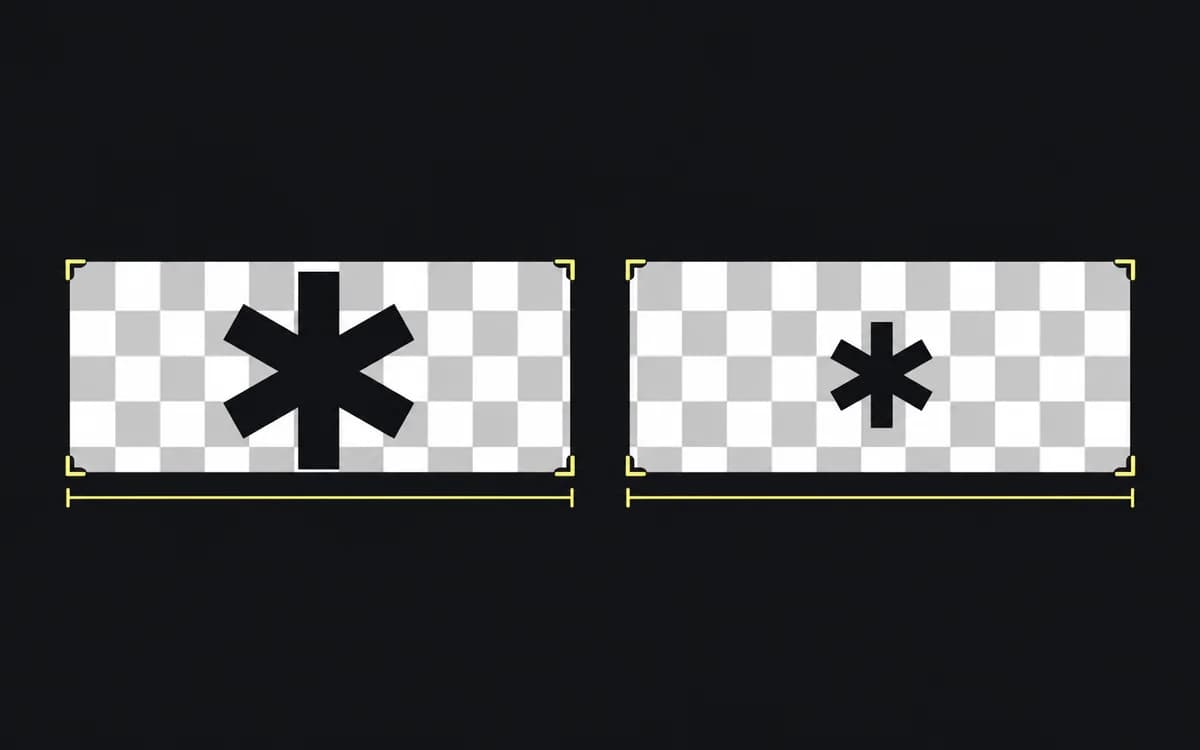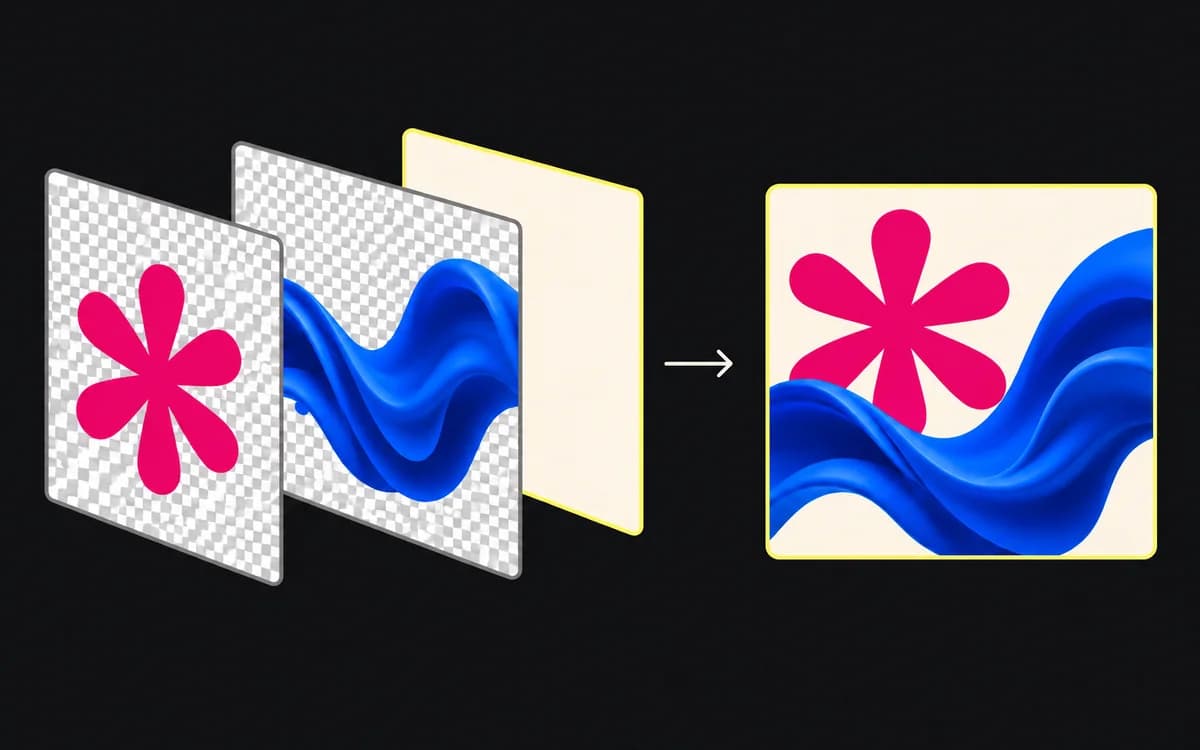
Check the pixels left after cropping, then inspect the detail the ad needs. A large landscape photograph can leave too few pixels for a tall product crop. You need the original image, the planned crop, and the required export dimensions to find out before building the ad.
Start with the delivered frame
Read the destination's current specification for export dimensions. Use pixels, not inches or a “300 DPI” label. Changing a resolution field without resampling does not create more image detail; Adobe explains the difference between pixel dimensions and print resolution.
For a planned 1080 × 1920 export, a 2400 × 1600 landscape photo is not automatically large enough. A 9:16 crop using its full 1600 px height is only 900 px wide: 1600 × 9 ÷ 16 = 900. Exporting that window at 1080 × 1920 enlarges both axes by 1080 ÷ 900 = 1.2.
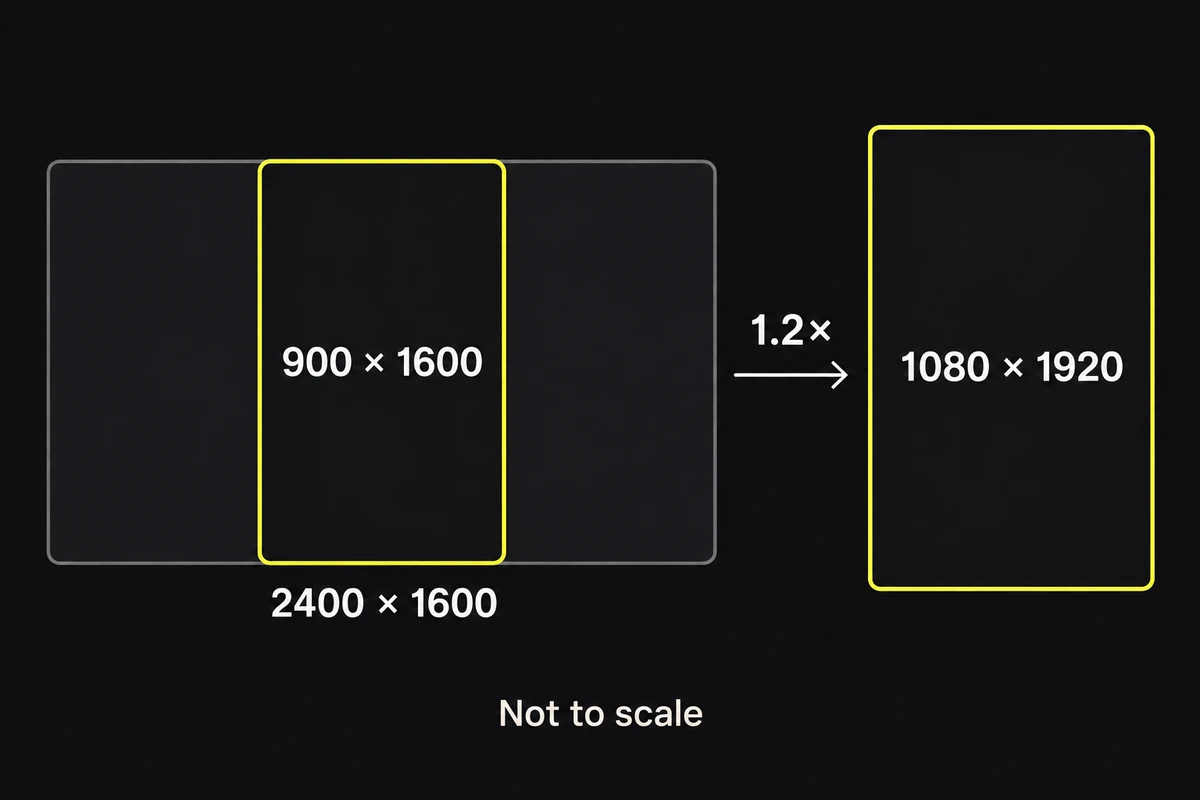
For your own image, divide output width by crop width and output height by crop height. A crop with the correct aspect ratio gives the same factor on both axes. Above 1 means enlargement; below 1 means reduction. This measures the pixel shortage, not the acceptability of the result. A soft background may tolerate enlargement that makes a product label unusable.
Look for detail, not just dimensions
Open the original at 100% to inspect source pixels. Look at the detail carrying the claim: packaging text, a software result, or a person's face. If it is already blurred or blocky, more output pixels will not recover the captured detail.
Then inspect the exported ad at the size it will be displayed. These are different checks: 100% exposes source defects; placement size tells you whether they matter to the message. A high-resolution label can still become unreadable when the product is tiny in the layout.
Use the failure to choose the correction:
| What you find | Change |
|---|---|
| Too few pixels remain in the required crop | Use a closer source, loosen the crop, or contain the image in a smaller area. |
| Enough pixels, but the original is blurred | Request another original or capture. Sharpening cannot repair missed focus. |
| Sharp original, soft export | Check export dimensions and compression before replacing the source. |
| Sharp export, unreadable label at placement size | Enlarge the product within the layout or carry the necessary wording as separate text. |
Use the best available master
Request the original photograph when the supplied copy came from a slide, social download, or message attachment. Keep it untouched; export each variant from the editable source rather than enlarging yesterday's delivery file.
Keep logos and text as editable/vector elements until the final raster export. Enlarging a flattened ad enlarges its small raster lettering too. Preserve image proportions when fitting a new frame; stretching creates a geometry problem as well as a resolution problem.
Check every export
Open the delivered file and confirm its actual pixel dimensions. Compare its critical detail with the source, then view it at placement size. Accept it when the required subject and detail remain recognizable without stretching or distracting export artifacts.
If the detail has been cut away, use the cropping guide. If it survives the crop but deteriorates only after export, use the compression guide.