A safe-zone check needs the final creative and the interface that will cover it: caption, account identity, action, and any added controls. A blank 9:16 artboard cannot establish clearance. Use the destination's current template and ad preview; there is no universal margin for all social placements.
Find the real overlay for each placement
For each placement, record the format, language, caption, CTA, and interactive additions. Open the platform's current safe-zone guidance. Place its downloadable overlay above the artwork at matching dimensions, on a separate review layer excluded from export. For a placement without a downloadable overlay, use its configured preview to locate the controls.
For example, TikTok's in-feed specifications make safe-zone selection depend on dimensions, caption length, and additional formats. Its Ad Preview Tool instructions let you select the ad type, upload the asset, set identity, text, CTA, disclaimer and app language, then choose a phone model. Use the settings you will actually publish; a short placeholder caption can conceal the eventual overlap.
Protect the message, not every background pixel
Mark the essential content as groups: offer plus qualification, product plus the feature being demonstrated, advertiser, and any action inside the creative. Compare each group's full bounds with the overlay. A face or product detail can need protection even when it contains no text. Background can extend underneath controls when nothing required is lost.
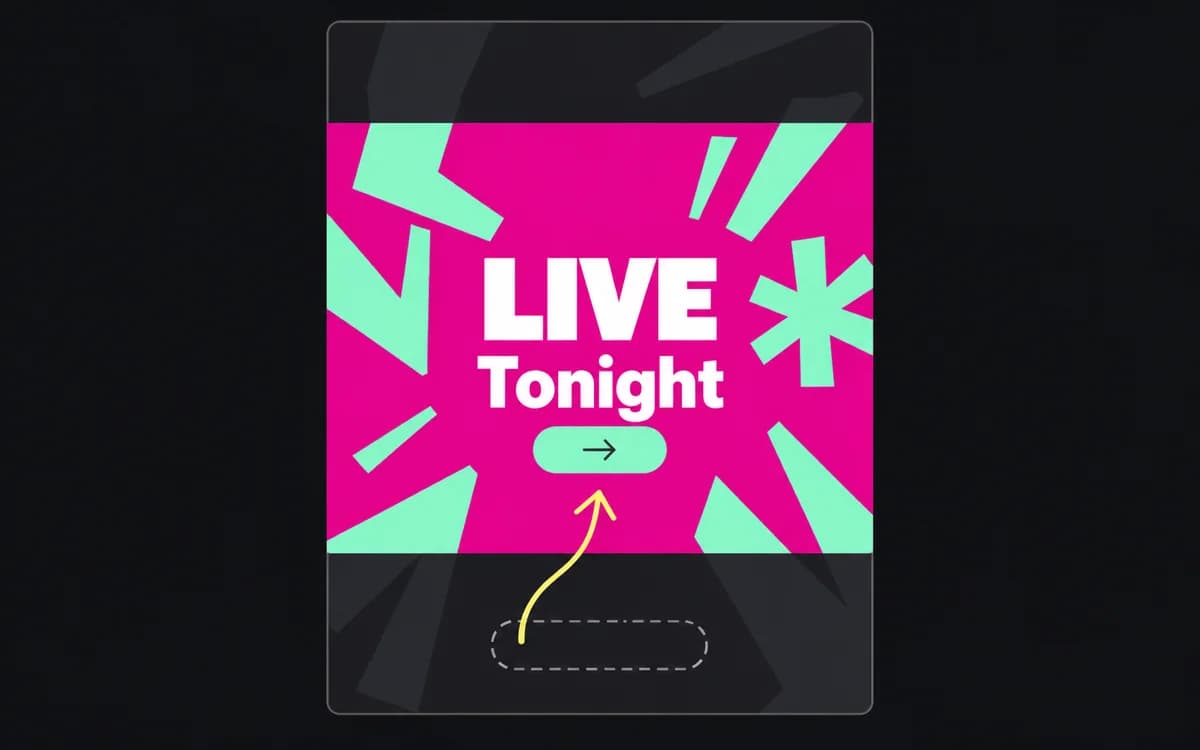
Move a colliding group into the clear area, then check the neighbors it displaces. If that makes the group too small, recompose the image and copy or use approved shorter wording. Centering the whole layout can simply trade a bottom overlap for a side overlap.
In the event example below, move “Join tonight” and “Booking required” together. Saving only the first line hides a condition the viewer needs before deciding.
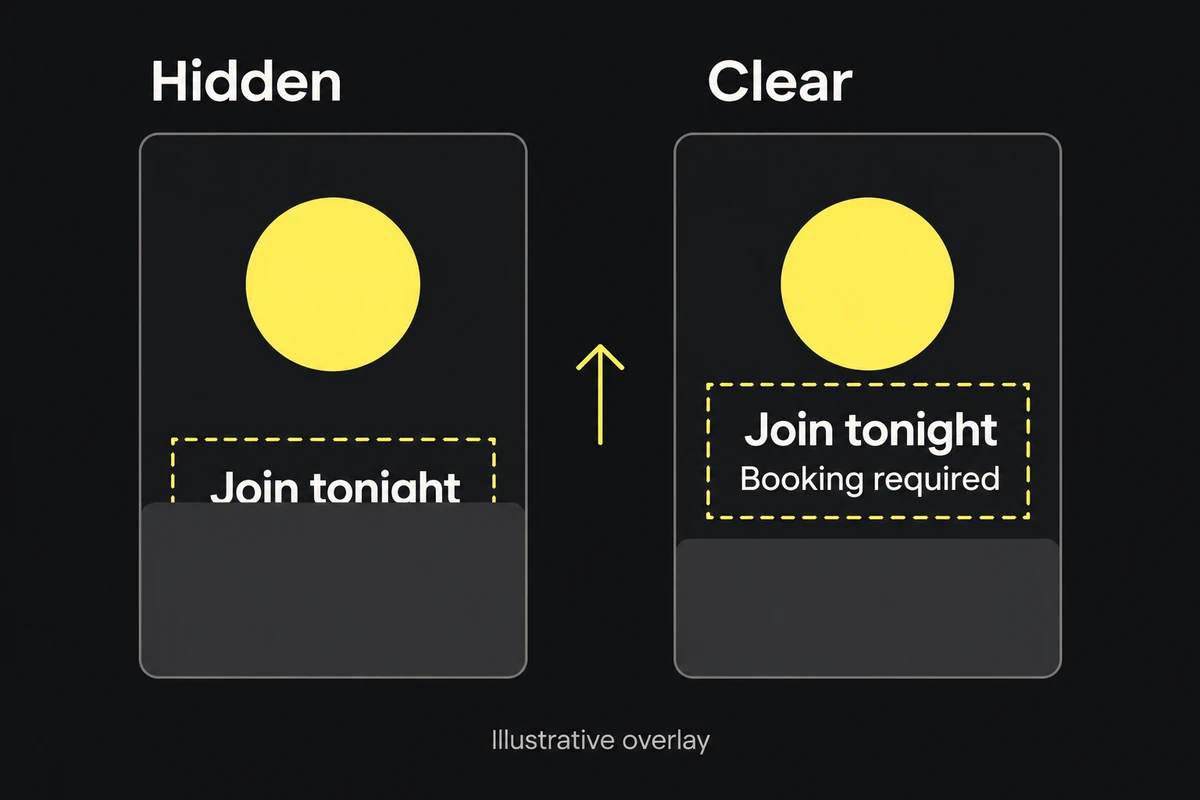
Move the offer and its condition together. These abstract overlays explain the check; the current platform preview determines the real clear area.
Read the ad with the interface visible
Upload the exported file to the placement preview without publishing it. Apply the real caption and CTA, then read the entire offer at normal presentation size. For video, scrub through every text or scene change: a protected opening frame does not clear words that animate into a control later.
Repeat for each selected placement and language. Longer captions or translated text can reduce usable space. Check available device previews too; TikTok notes that its creation preview can differ slightly from live device appearance. A template is a design constraint, not a guarantee of identical pixels on every phone.
Keep a screenshot of the configured preview when someone else will approve or publish the ad. It should show the creative and overlays together, not just an empty safe-zone template.
Approve one placement at a time
Record file | placement | caption/CTA version | language | preview/template checked | remaining overlap. Clear the row only when essential groups survive both the crop and the interface. A later caption, CTA, or layout change reopens that row.
Without preview access, use the current official template and hand the export to the placement owner for the configured check. Mark that check pending rather than guessing an inset. Use the multi-size adaptation guide if the clear area requires a different composition.