
The background looked like a soft wash. The exported ad looks like a stack of contour lines. Adding grain everywhere might disguise the stripes, but it also roughens the product and text. First find the earliest version that contains the problem.
Use an ad with a long, quiet gradient and keep its layered source. You will make a small export comparison, then change only the background treatment that needs it.
Find the first striped version
Open the source at 100% and compare the same area in the exported file at 100%. Also inspect the ad at its intended display size. A fitted preview can introduce a different resampling view; a highly enlarged crop can make an acceptable texture look alarming.
- Stripes are already in the source: hide adjustment layers one at a time. If the stripes disappear, keep that layer off while rebuilding the background. If they remain, replace the gradient as described below.
- The source is smooth, but the export is striped: export one PNG and one JPG at the same pixel dimensions. Compare the same area at 100%. Change JPG quality only if the PNG is smooth and the JPG is striped.
- The local export is smooth, but the uploaded image is striped: open or download the image actually served by the platform. Compare it with your local export and check the platform's size and format requirements before editing the source.
- The stripes change with zoom or viewer: compare both files at 100% in the same viewer, then at the ad's actual display size. Do not edit the background based on a single zoom level.
These observations locate the next test. They do not prove that a particular monitor, codec or setting caused the defect. Keep the same screen and viewing conditions while comparing files.
Rebuild the transition while it is editable
If the source is already stepped, return to the gradient layer before adding a repair effect. Keep headline, product and background separate. In Photoshop's Layers panel, hide any Curves, Levels or other adjustment layer that changes the background's lightness. If the stripes disappear, that adjustment is the next thing to revise; if they remain, rebuild the gradient. Do not repeatedly blur a flattened ad.
To rebuild it, select the background in the Layers panel, then select the Gradient tool. Choose the intended colors in the Options bar, select a gradient type, turn on Dither, and drag across the canvas in the direction of the transition. Keep the resulting gradient behind the product and text. Dither distributes tiny color differences so they do not form obvious stripes. Adobe documents the exact tool steps; its Options bar affects a new gradient, while the Properties panel edits one already drawn. Inspect the whole transition, including where it meets a flat fill.
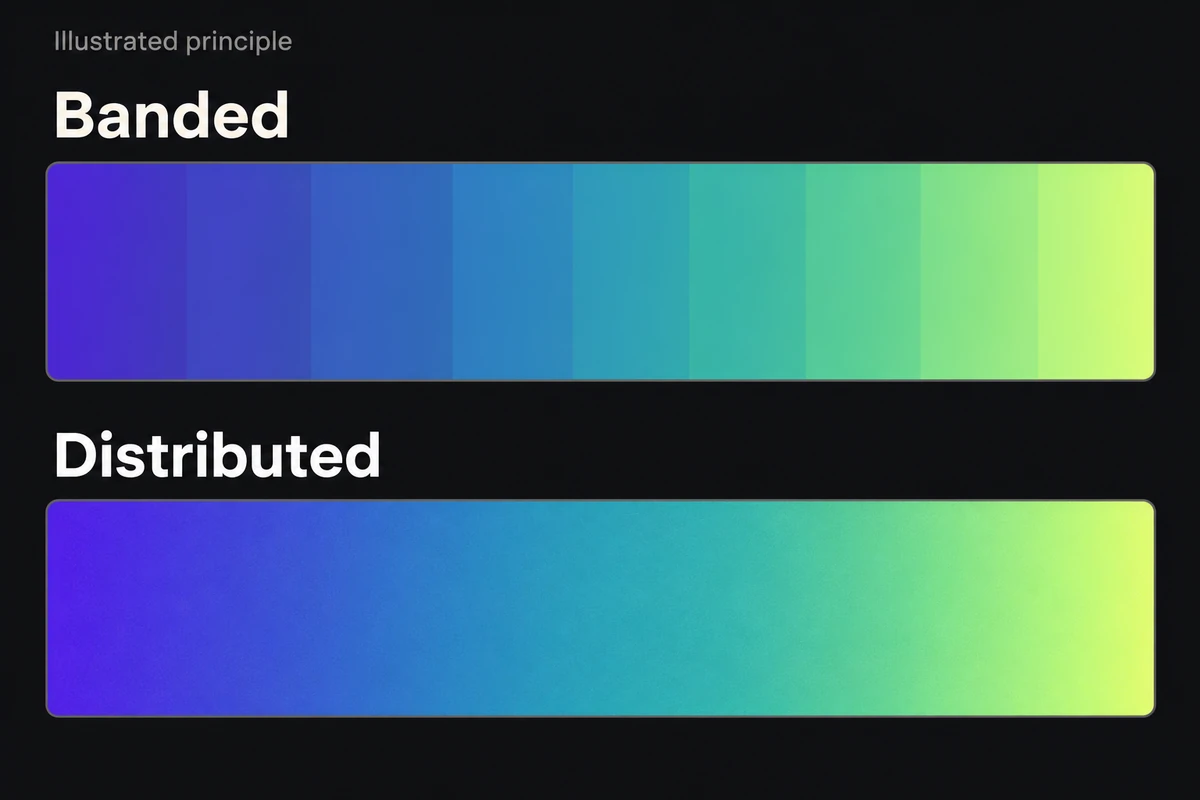
A band forms a continuous boundary; dithering distributes the transition.
Test the delivery without changing three things at once
In Photoshop, choose File > Export > Export As. Set Scale to 1× and check that Width and Height match the destination's required pixels. Export a PNG; then reopen Export As, keep the same dimensions and color settings, choose JPG, and export again. Adobe documents these format and quality controls. Compare the same background patch in both files at 100%. If PNG is smooth but JPG is striped, raise JPG Quality and repeat; if both are striped, return to the background instead. Keep the layered source: reopening and resaving a damaged JPG is a different experiment.
Keep the smallest test that answers the question:
A — current background, current delivery settings
B — revised background, same delivery settings
C — revised background, alternative delivery setting
Compare A with B to judge the artwork change, then B with C to judge encoding. Do not call a differently sized, differently colored export a controlled comparison.
Check the version the viewer receives
Upload the candidate through the intended delivery route and inspect its served image when that is available. A smooth local PNG cannot prove that a platform's recompressed derivative remains smooth. Record which version you actually inspected.
Stop when the background holds up at the required size, the product and text retain their clean edges, and the delivered file meets the destination's limits. If the remaining defect is a halo around lettering rather than bands across a gradient, use the compression guide. If the entire hue shifts, investigate color after export instead.


