
A black bicycle handlebar looks stronger after a contrast adjustment. Then the overlapping tape becomes one flat shape. The product is still black, but the photograph no longer explains its surface.
Start with a source that already contains useful shadow detail. Keep that original beside the adjusted version. This exercise protects distinctions you have; lifting a flattened black area cannot reconstruct wrap edges or grain that the source never recorded.
Name the detail before adjusting it
Choose two or three landmarks inside the dark product: the overlap of the handlebar tape, the boundary between the hood and wrap, and a small area of surface texture. Check them at 100%, then at the campaign's viewing size.
These are your stopping points. The goal is not to make every dark pixel visible or turn black rubber gray. Deep recesses can remain black while a useful seam stays readable. Likewise, a small bright reflection can be appropriate without proving that all highlights are safe.
If the original already lacks the needed material information, check another exposure or source photograph. A histogram can describe recorded values; it cannot tell you which missing feature the product should have.
Check what the black point removes
In Photoshop, select the photograph and choose Layer → New Adjustment Layer → Levels, then click OK. Open Window → Properties if the histogram is hidden. The three triangles directly under the histogram are Input Levels: black at left, gray in the middle, white at right. The separate pair under the lower gradient bar are Output Levels; leave those at their defaults for this exercise.
Moving the black Input slider right maps more dark values to black. Adobe's Levels instructions give a simple example: a black input of 5 maps values of 5 and below to 0. That explains clipping; it is not a setting to copy.
Hold Alt on Windows or Option on macOS while dragging the black Input slider to preview clipping. The view turns largely white; black or colored patches mark where clipping begins in all or some color channels. Watch whether new patches cross the tape overlap or texture you need. Release the key to inspect the normal image. Adobe also documents Show Clipping For Black/White Points in the Properties panel menu.
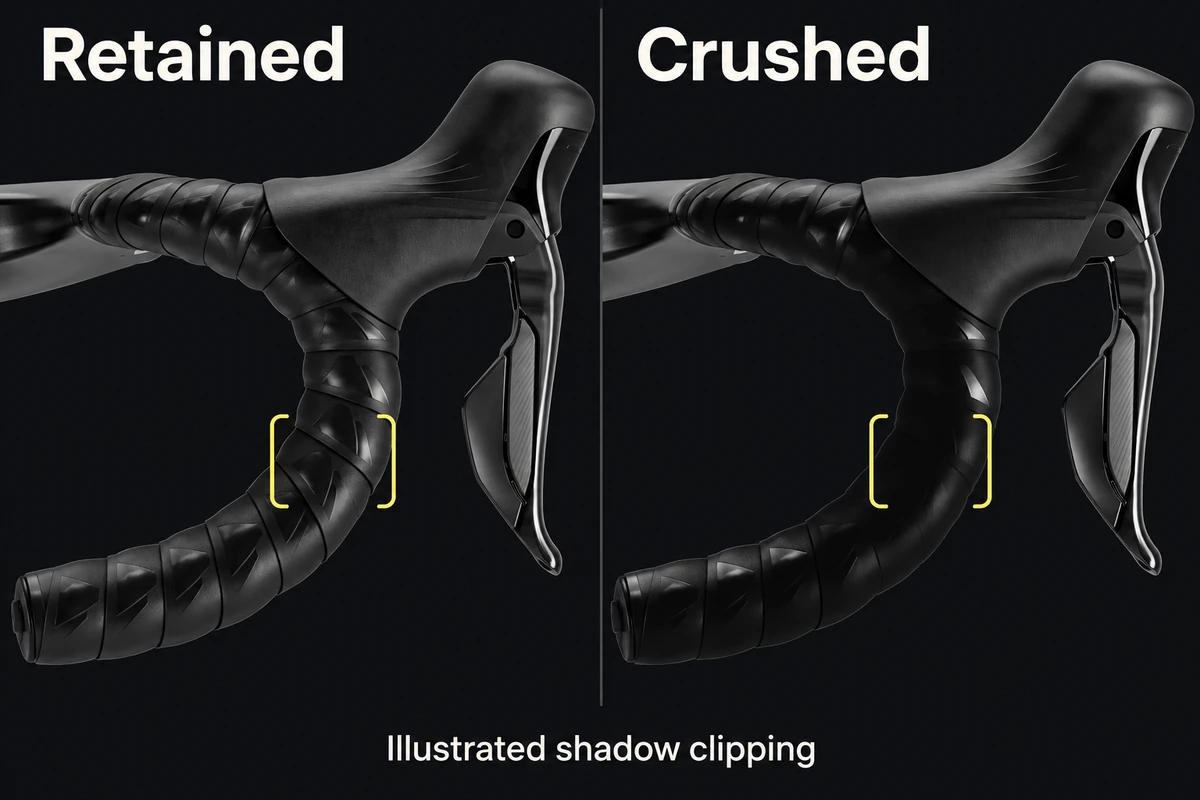
Illustration of retained versus crushed shadow distinctions. It does not demonstrate recovered detail or a measured Levels result.
If the adjustment makes the tape overlap disappear, move the black Input slider back left; entering 0 in its Input field removes that black-point move from this Levels adjustment. Toggle the layer's eye off and on to confirm that the original still contains the distinction. Do not continue pushing the slider merely because the histogram leaves space at an endpoint; a deliberately dark photograph need not fill the entire range.
Change the tone that needs changing
If the product needs more readable middle-dark values while the black point is already acceptable, test the middle Input slider. Levels uses it to adjust midtones; moving it left lightens them, and moving it right darkens them. Watch the same seams and material, then return to the whole composition.
An adjustment over the entire ad also changes the background and other visible layers beneath it. When only the product layer needs the correction, put Levels directly above it, select Levels, and choose Layer → Create Clipping Mask. If the photograph includes both the product and its backdrop, clipping still affects both; use the adjustment's mask to limit the region further. The mask guide explains that distinction between selecting a layer and controlling where a treatment appears.
Avoid lifting the shadows until noise becomes the dominant texture. If a small tonal change reveals grain but no useful structure, the source may be the limiting factor. Raising brightness is not proof of more product information.
Check the dark material in the delivered image
Export the current version and compare it with the untouched reference under the same viewing conditions. Inspect the actual delivery dimensions as well as 100%. A large source can show subtle tape detail that disappears when the image is reduced.
Keep a short check beside the file: tape overlap visible, hood separated, black material still reads as black. If the product holds its detail locally but loses it after upload, inspect the served image before changing the source again. For an overall hue or brightness shift across applications, investigate color after export.
Finish when the important material boundaries survive and the intended dark atmosphere remains. The best version may still contain deep black areas; it simply keeps them away from the detail the reader needs to see.


