
A pale speck sits on a blue shoe beside a dark bonded seam. One healing stroke removes it, but the seam now bends into a soft blue patch. The photograph is cleaner and less believable.
Use a product source with an isolated speck and visible material texture. The job is to remove that interruption while preserving the weave, seam and photographed light. Keep the untouched source available; it is the reference for what belongs there.
Decide which mark you are removing
Inspect at 100% and at the campaign's intended display size. Identify a specific foreign speck rather than treating every irregularity as dirt. A yarn loop, leather pore or intentional distressed finish can look distracting when enlarged and still be part of the product.
If you cannot distinguish dust from a manufacturing mark or wear, check another source photograph or ask the product owner. Removing an actual feature changes what the photograph represents. A broad smoothing pass makes that decision everywhere at once.
Start with one reversible spot
Add an empty pixel layer above the photograph and name it for the cleanup. Select the Spot Healing Brush, enable Sample All Layers, and use a brush slightly larger than the speck. Choose Content-Aware, then make one short click or stroke. These controls follow Adobe's Spot Healing instructions.
Check the result immediately. The speck should disappear without a lighter island, broken yarn direction or blurred boundary. If the correction fails, undo it before painting over the failure repeatedly. Temporarily hide unrelated corrections above the photograph while sampling if they would become baked into the patch; restore them to judge the result.
Automatic sampling is useful in an uninterrupted patch of material. Beside the seam, its chosen surroundings may include the very edge you need to preserve.
Use a chosen sample near a hard edge
Switch to the Healing Brush when you need to choose the texture source. Set its sampling to Current & Below on the empty repair layer. Alt-click on Windows or Option-click on macOS to sample clean material with similar light and weave direction, then repair the small target area.
Adobe's Healing Brush guide explains chosen samples and warns about color bleeding near strong contrast. A selection that excludes the opposite side of the seam can constrain that blending. A large soft stroke crossing the boundary still asks the tool to mix two different surfaces.
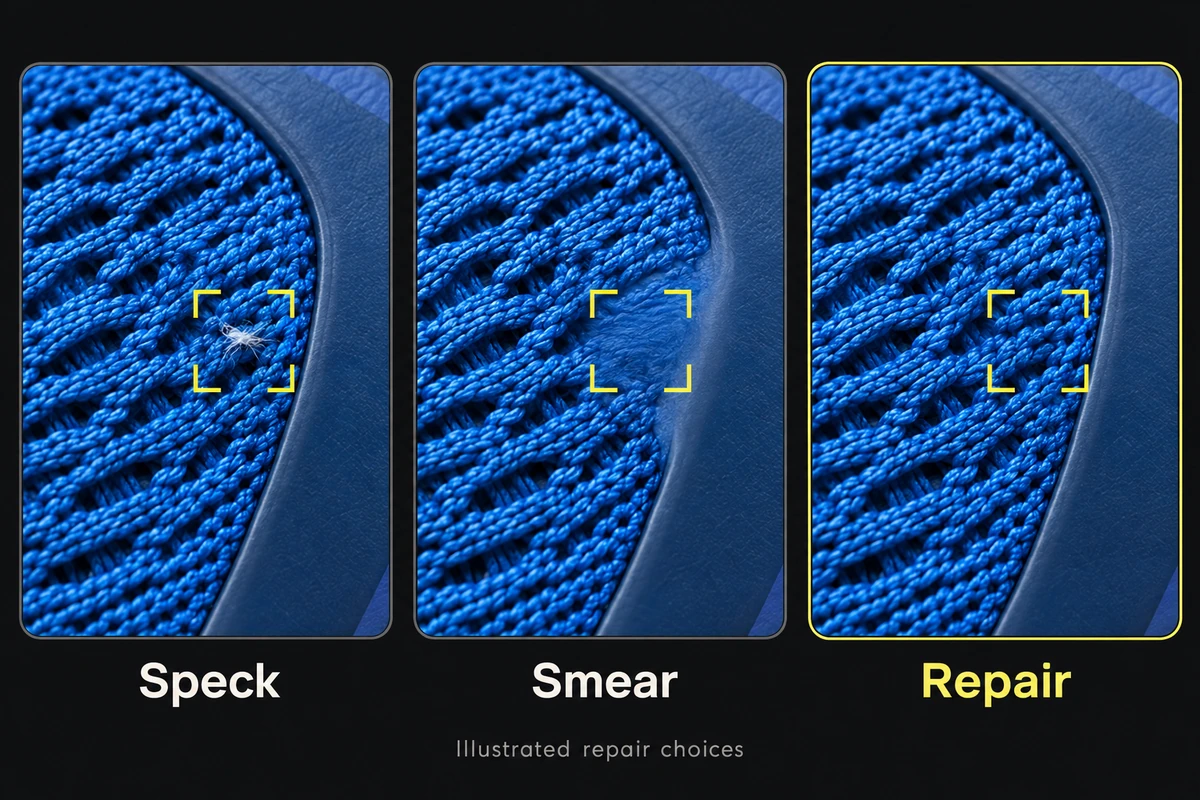
In the illustration, the middle repair removes the speck but damages the edge. Check that boundary before approving a patch.
If healing still changes the edge, use Clone Stamp for a small, controlled copy instead. Choose Current & Below, sample an intact matching segment, and paint only the missing part. Adobe documents that source setup in its Clone Stamp guide. A copied seam must align with the existing seam; a nearby source is not automatically the correct one.
Look for the repair you accidentally introduced
Toggle the cleanup layer off and on. Keep the view still and compare the same region. Check three things: the foreign speck is gone, the boundary continues in its original direction, and the repaired texture has the same scale and brightness as its surroundings.
Watch for a distinctive loop or scratch appearing twice. Clone Stamp can repeat recognizable texture; choose another suitable sample before extending the repair. Avoid replacing a long strip when only one tiny point needs correction.
Finally inspect the exported campaign crop. A perfect-looking 400% patch does not justify flattening the material at normal viewing size. If the seam only becomes damaged after export, investigate compression before doing more retouching. If the problem is the product's outer silhouette, revise its mask instead.


