
The guitar's pickguard has a clear curve in the source photo. In a small ad, the curve looks slightly soft. Push sharpening harder and a pale outline appears around it; the red lacquer starts to look gritty. The outline is extra edge contrast, not recovered detail.
Use a usable, focused source for this exercise. You will make an editable sharpening treatment for one delivery size and compare it with an untreated version. Missing focus, unreadable photographed lettering and discarded pixels need a better source; a stronger filter cannot establish what was there.
Fix the output dimensions first
Keep the layered master. In Photoshop, choose Image → Duplicate to make a delivery copy, then Image → Image Size. Set Width and Height units to Pixels, enable Resample, and keep the proportions linked while reducing to the required size. If the required shape differs, crop the copy first rather than stretching it. Adobe explains the Image Size controls.
Sharpen after that reduction so you judge the pixels you will actually ship. A treatment that suits a large image can become excessive after another reduction.
Check the resized image before applying any filter. Compare a high-contrast contour, one useful fine detail and a quiet surface. On the guitar, those are the cream pickguard boundary, a small metal screw and the red lacquer. They give the filter three different chances to fail.
If the whole composition is too small for its placement, return to the resolution check. Sharpening the smaller export is a different job from supplying enough source pixels.
Give the filter a control you can reopen
In the delivery copy, open Window → Layers, right-click the image layer, and choose Convert to Smart Object. Open Filter → Sharpen → Smart Sharpen and inspect the preview at 100%. Adobe's Smart Sharpen guide documents that editable setup and the main controls:
| Control | What you are changing | What to watch |
|---|---|---|
| Amount | Strength of added edge contrast | Harsh contours and amplified grain |
| Radius | Pixel distance affected around an edge | Broad light or dark rims |
| Reduce Noise | Suppression of grain or artifacts during sharpening | Loss of the fine detail you meant to retain |
In Remove, start with Lens Blur for this focused photograph; it targets edge detail while limiting halos. Gaussian Blur is the conventional sharpening model. Choose Motion Blur only when the source has a directional smear, then align its Angle with that smear. None of these options can reliably rebuild missing focus or unreadable lettering.
Start with a restrained treatment. Change one control and inspect the same three regions. Click OK; Smart Sharpen should appear beneath the layer as a Smart Filter. Toggle its eye icon to compare, and double-click its name to revise the settings. There is no useful universal Amount and Radius pair for every subject and output size.
Converting a damaged layer to a Smart Object preserves that damaged input; it does not recover an earlier, sharper original. Keep the master available if the delivery copy needs rebuilding.
Stop before the outline becomes the subject
The useful result separates neighboring details without drawing a new border around the object. Follow the pickguard's curve through light and shadow. A continuous bright rim with a dark partner beside it is a reason to back off, even if the screw looks more dramatic.
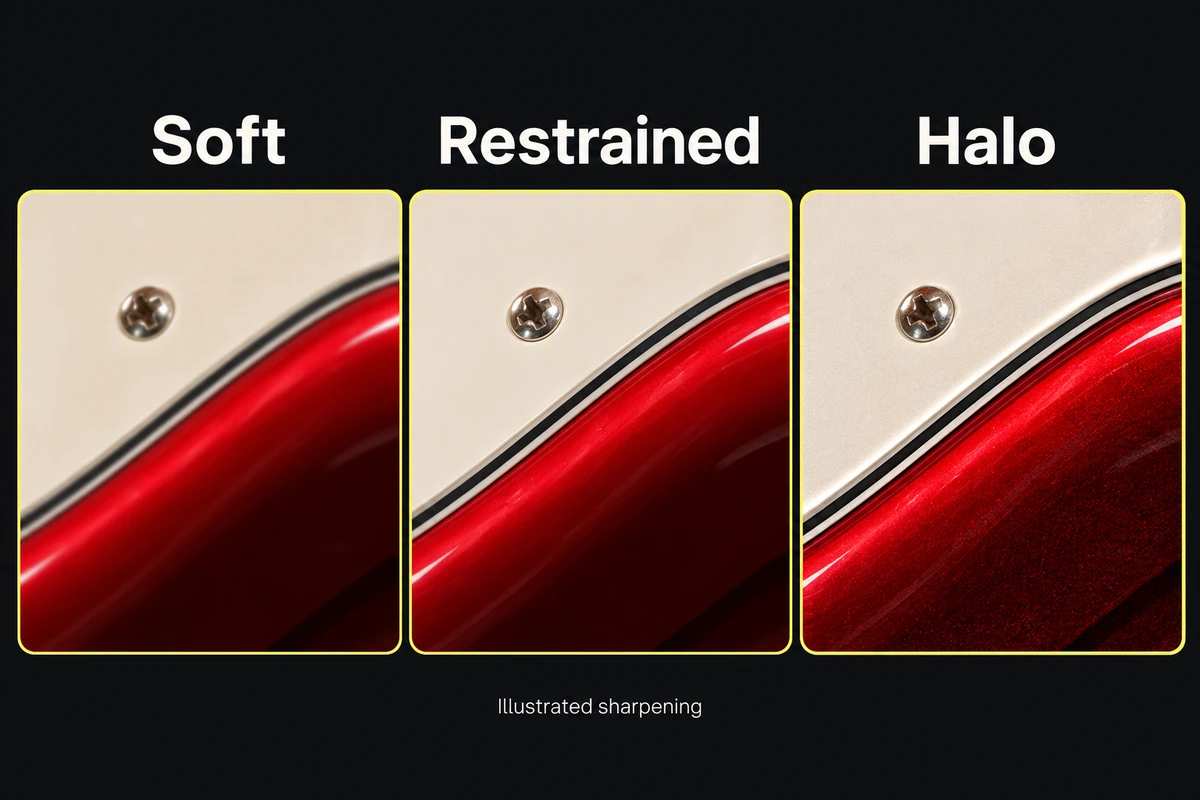
An illustrated sharpening progression using one fixed subject. These are explanatory pixels, not Smart Sharpen outputs or recommended settings.
If the halo spreads far from the edge, reduce Radius and reassess Amount. If the quiet red area becomes gritty, reduce the treatment and test Reduce Noise carefully. Smoothing away that grit until the surface looks waxy exchanges one defect for another.
Also inspect at the intended display size. The 100% view exposes pixel artifacts; the displayed view tells you whether the small ad actually reads more clearly. A treatment visible only under extreme enlargement may add damage without helping the placement.
Compare the exported files
Export an untreated version and the candidate with identical dimensions, format, quality and color settings. Open both exported files, rather than comparing a source preview with a compressed delivery.
Keep the candidate only if useful detail becomes easier to read while the contours and quiet surfaces remain convincing. If neither version has a halo locally but the uploaded image does, inspect the served derivative. If speckled ringing appears around text or edges, the compression guide covers that next test. A second sharpening pass over the damaged export would hide the cause.


