
A violet-to-yellow wash can cover a photograph without giving its face, fabric and shadows a coherent color treatment. A Gradient Map uses the image's tones to choose colors. Dark hair can become violet on either side of the frame; a bright lapel can become yellow wherever it appears.
Use a photograph with distinct shadows, highlights and useful midtone detail. Keep the original. For this exercise, choose a dark indigo for shadows and a vivid yellow for highlights. The result is digital RGB artwork with colors between those endpoints, not a two-ink print separation.
Map tone, not position
- In Photoshop, select the photograph's layer and choose Layer → New Adjustment Layer → Gradient Map. In the New Layer dialog, enable Use Previous Layer to Create Clipping Mask, then click OK. The adjustment should sit immediately above the photo; live copy and logos on other layers should keep their colors.
- Open Window → Properties if needed and click the gradient preview. If a preset picker appears first, click the preview again to open Gradient Editor. Choose a two-color preset as a starting point.
- Double-click the left color stop below the gradient bar, choose indigo in the Color Picker, and click OK. Repeat for the right color stop with yellow. The stops above the bar control opacity; leave them unchanged. Click OK to close the editor.
- In the Layers panel, leave the adjustment's blend mode at Normal and Opacity at 100% for the first inspection. This makes the mapping easier to judge before mixing the original colors back in.
Adobe's Gradient Map instructions assign shadows to the gradient's start, highlights to its end and midtones to the colors between. A Gradient Fill places a transition across space instead. If the left half becomes indigo and the right half yellow regardless of the subject's tones, check which adjustment you added.
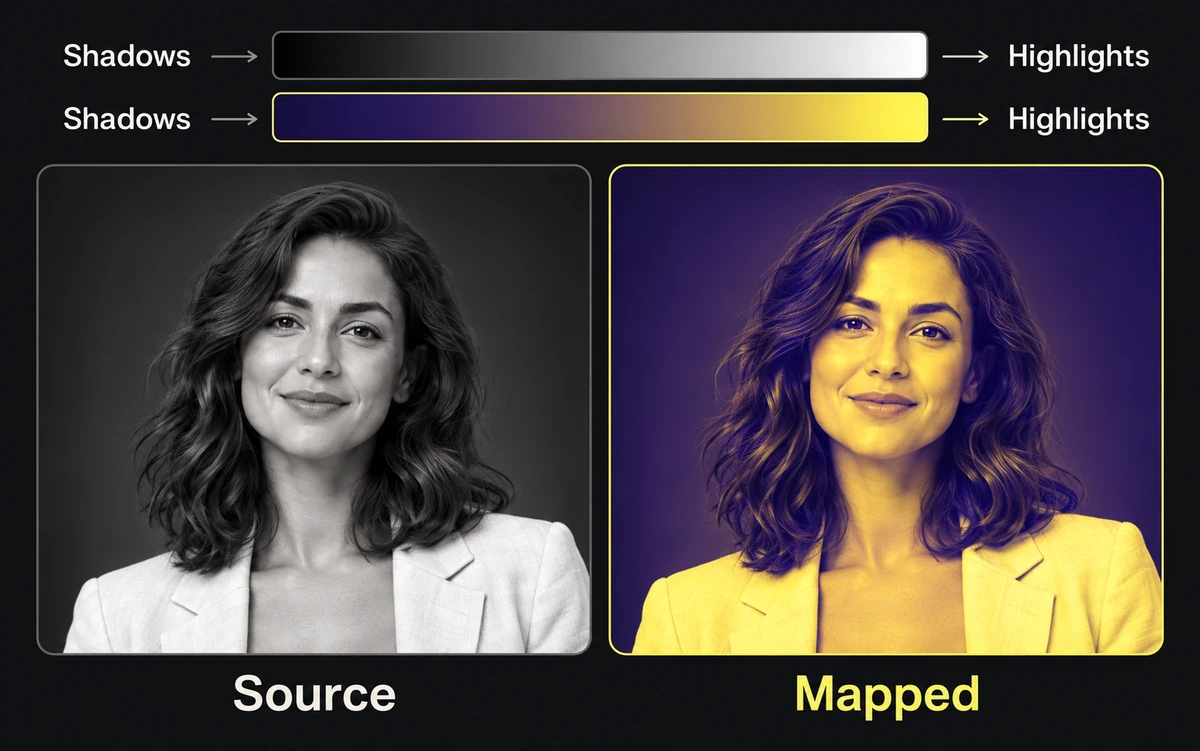
Illustration of tonal mapping from one fictional portrait source. This is explanatory artwork, not a measured Photoshop comparison or a real campaign result.
Keep the midtones doing useful work
Look at the features that identify the subject: the eyes and cheek, a jacket seam, or a product's material texture. Two attractive endpoint swatches can still produce a treatment that merges those distinctions.
Click the gradient preview to reopen its editor. Select a lower color stop to expose the small diamond between the two stops, then drag that midpoint diamond slightly left or right. Watch the cheek or seam after each move: has the transition separated the detail, or merged it into a flat patch? Adobe's two-color tutorial shows the stops and midpoint controls. Moving the midpoint redistributes the color transition; it does not paint a new highlight into the photograph. Choose endpoint colors with enough lightness difference when the subject needs stronger separation.
If the face turns into one flat region, compare with the original. Detail already missing in a clipped source cannot be recovered by selecting a brighter yellow. Detail present in the original but hidden by the treatment points back to the mapping. Restore a useful transition before adding texture or sharpening.
Test the treatment as part of the ad
In the Gradient Map's Properties panel, toggle Reverse once to see the inverse relationship, then choose the version that serves the subject. Reversal maps shadows toward the previous highlight color; it is a different art direction, not a repair command.
If you want some original color to remain, reduce the adjustment's opacity after the full mapping works. That result mixes the source with the treatment and no longer follows only the two endpoint colors. A mask can restrict the effect to one area, but keep the edge tied to the subject rather than an arbitrary stripe.
Place the actual headline and logo over the treated image. Check their background locally: a yellow face may support dark text while the indigo hair beside it does not. Use the palette guide to resolve those pairs.
Inspect the final transitions
Check the source at 100% and the export at its intended viewing size. Enable Dither in the Gradient Map's Properties panel when the map develops visible bands, then compare the delivered file; use the banding guide if the defect appears only after export.
Save the layered source with its editable map. Finish when the subject remains identifiable, the intended detail survives in the midtones and the exported colors keep the hierarchy you judged in the ad.


