
A yellow backpack pocket needs to become teal in a campaign concept. Painting an opaque teal shape over it changes the color, but also buries its weave, seams, and folds. Start with a color adjustment confined to that pocket, then judge what happens to its light.
Use a photograph with visible surface detail and keep its original pixels. The backpack here is a constructed teaching specimen. If the finished image must represent a particular product color, compare it with an approved reference; an attractive hue shift alone cannot establish that match.
Give the material its own mask
A correction clipped to a photograph can still affect everything inside that photograph. The cream body and yellow pocket occupy the same layer. Clipping alone cannot tell them apart.
- Open Window → Layers and select the photograph. Hold the toolbar's Lasso icon to choose Polygonal Lasso. Click around the pocket fabric, using short segments along curves, then click the starting point to close the outline. Keep the zipper, tag, and lining outside the selection. If you included one, choose Subtract from selection in the options bar and trace around it.
- Choose Layer → New Adjustment Layer → Hue/Saturation, enable Use Previous Layer to Create Clipping Mask, and click OK. The selection becomes a mask: white over the pocket, black outside it.
- Open Window → Properties if necessary. Move Hue enough to see the boundary clearly. Only the pocket fabric should change.
- Click the adjustment's black-and-white mask thumbnail, then select Brush (B). Set the foreground swatch to black and paint over any tinted zipper or background; switch to white to restore missed fabric. Use a small brush at the seam, with a firm edge for a sharp seam and a softer edge only where the photograph is soft. A border around the mask thumbnail confirms you are editing the mask.
Adobe documents Polygonal Lasso selections, the Hue/Saturation adjustment, and painting an adjustment mask. Clipping limits the edit to the photograph; the material mask limits it to the pocket.
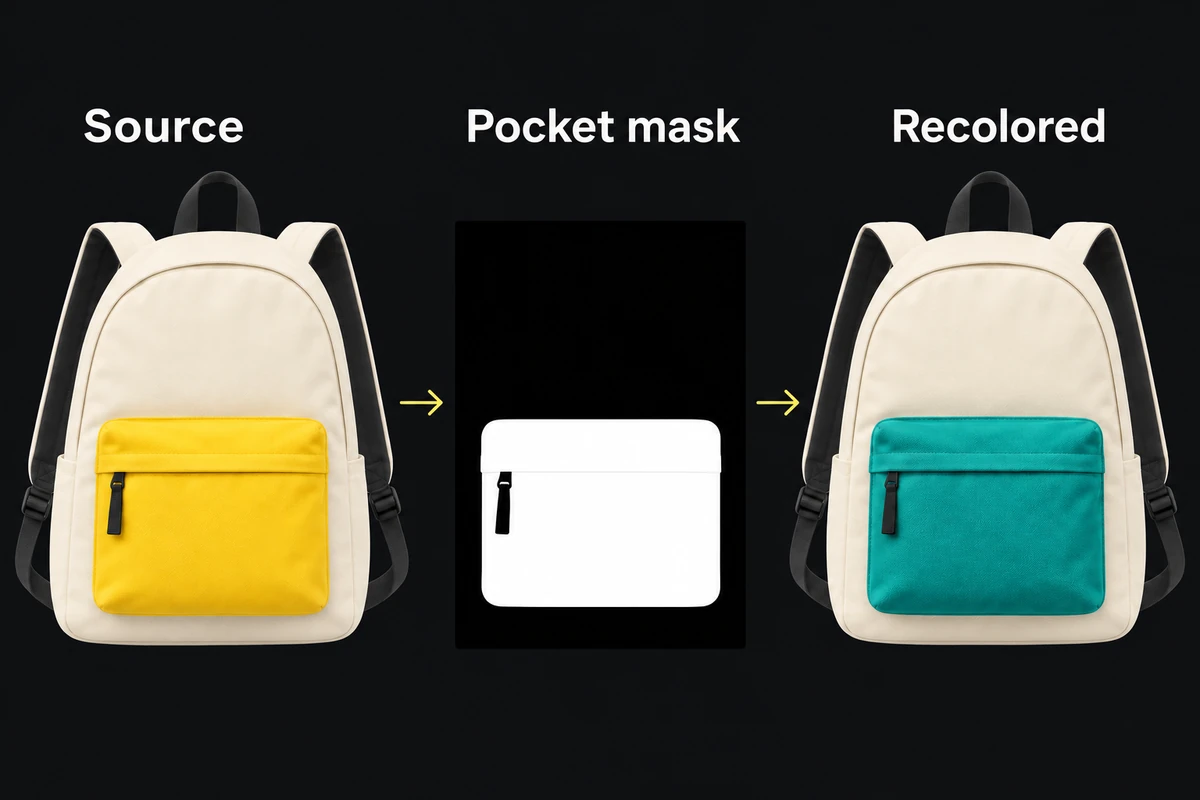
Constructed example: the mask limits the color edit to the pocket fabric. The zipper and cream body remain outside the correction; this is not a measured Photoshop result.
For a soft or contaminated outline, use the mask guide to repair visibility. Do not hide a poor boundary with extra saturation.
Change hue before rebuilding brightness
Rotate Hue toward the new direction, then adjust Saturation only as far as the material needs. Leave Lightness alone initially. Moving several controls at once makes it harder to see whether the problem is the hue, its intensity, or the brightness relationship.
Compare the pocket with the adjustment hidden and shown. Its fold should still have a lit side and a shaded side. A seam should not disappear into a solid patch. If the teal shadow becomes an implausibly vivid stripe, reduce the correction or refine its color range instead of painting the shadow flat.
Hue shifts work with the color information already present. Nearly neutral fabric may barely respond; a clipped white reflection or solid black region contains little useful color to rotate. Colorize offers a different, more uniform tint, but still needs inspection of the material and protected parts.
Check the small parts before the whole ad
Inspect three details at source-pixel scale: the pocket edge against the cream body, the zipper, and a fold crossing the edited area. A narrow colored fringe or tinted zipper often reveals a mask leak sooner than the full composition does.
Then view the complete ad at its intended display size. The new pocket should belong to the same photograph: consistent light, recognizable texture, and no change to the bag's shape. A successful close-up can still become a distracting block of color when reduced.
Save the layered document with the adjustment and mask editable. Export a delivery copy and reopen it beside the source on the same screen. If the whole image shifts color after export, investigate the profile and conversion path before changing the pocket again.


